
Overview
As much as I dislike printers, many organizations still rely on them. It often becomes a conversation when converting devices to be cloud-native and managed by Intune. My general recommendation is that if there is a large fleet of printers, use a cloud-based printing solution for managing printers. It will be easier to manage and deploy the printers. However, if there are only a handful of printers, or maybe the client does not want to pay for a cloud-based print solution, we can deploy these printers through Intune.
Printer deployment (via IP port) with Intune is a good way to deploy printers to your Entra Joined endpoints, but it requires some manual work to build the package and deploy it. If you would like more information on how to do this manually, read this post from Rudy. If the print server is going to remain in place, and you want to easily map the printer connections to the print server on your Entra-joined devices, you can use Rock My Printers from Nicklas Ahlberg. Rock my Printers packages the driver and printer mappings so your entra-joined devices are mapped to the print server queues just like domain joined machines.
However, if you want to remove the print server entirely (hopefully you do, since you should be killing off Active Directory and other servers), you’ll need to package all printer connections from the server manually. Eventually, I got sick of this and started working on a script to automate it, and PrintServerToIntune was born. The script should be run on your print server so the printer port information and drivers are sourced correctly. This tool is technically two scripts:
- The first script (PackageMyPrinters.ps1) should be executed on your print server. It will prompt you to select which printers you want to migrate to Intune. After making your selection, it will pull the Printer information, Driver files, and port information, and package as a Win32 app, along with install, uninstall, and detection scripts, for upload to Intune. You’ll then be prompted if you want to upload the printers to Intune now, which calls the second script.
- The second script (UploadIntuneWinPrinters.ps1) will create an Intune Win32 app for each printer that was exported and upload the intunewin files. You’ll also be prompted at the start of the script if you want to assign the uploaded printers to the All Users group to save you time on the assignments if the organization wants to allow all users to freely connect to printers via company portal.
Full Instructions with details are below, but here’s a quick example where five printers were exported and uploaded to Intune in ~3 minutes. The GIF cuts out most of the waiting portions:

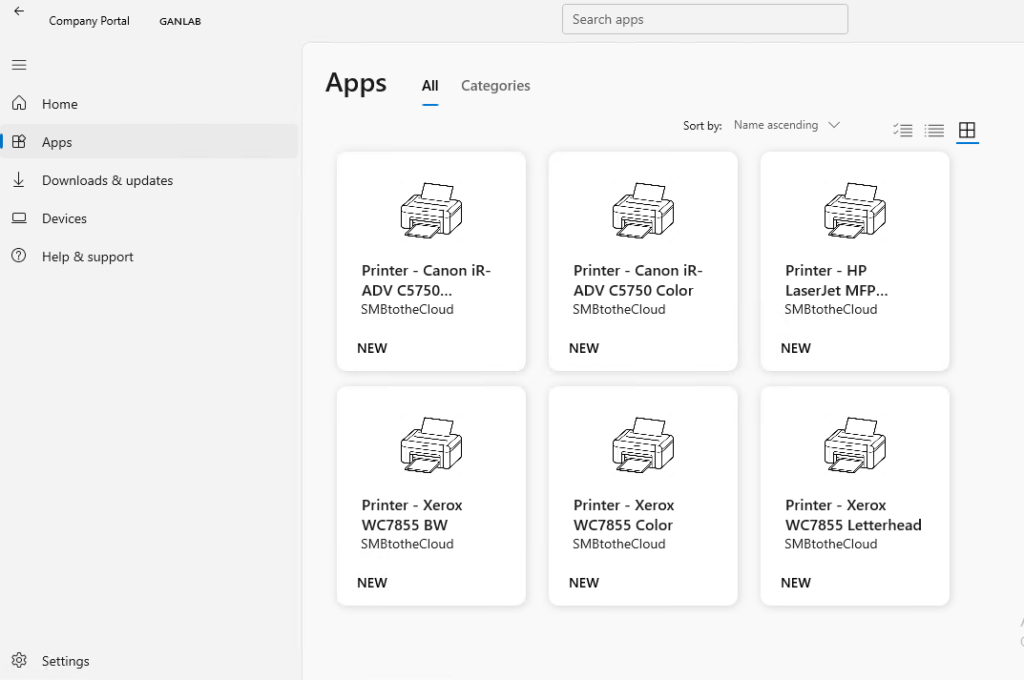
Assuming you made the printer availabel to all users, you’ll have your printer fleet moved from your print server to company portal in a matter of minutes:
Instructions
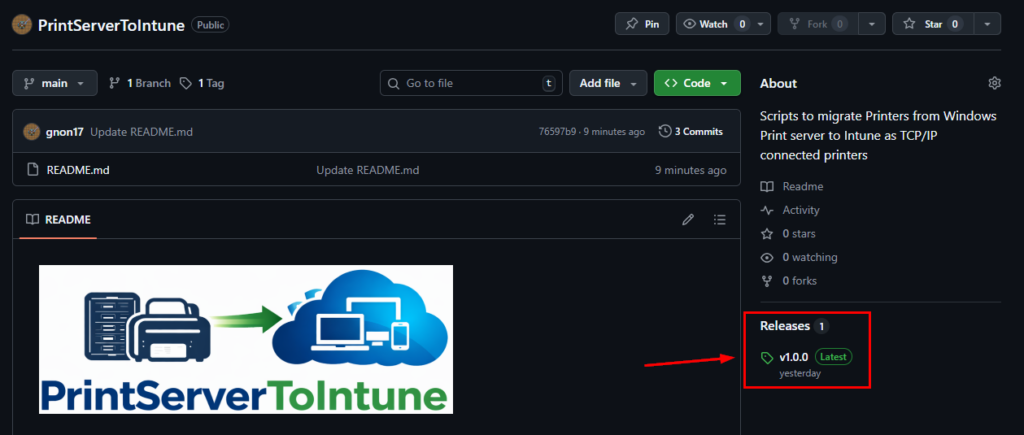
The script needs to be executed on the server/workstation where the printers are connected directly by TCP/IP port. If you don’t have a print server, you could connect all the printers to a workstation (via IP port) and then run the script from there. The printers do not need to be shared, but they must be connected to the workstation/server where you run the script, and they must be connected via TCP/IP port. Go to GitHub (https://github.com/gnon17/PrintServerToIntune) and download the latest release:
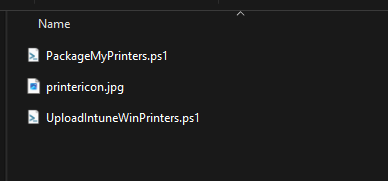
Extract the downloaded zip file. You’ll see three files.
- PackageMyPrinters – Run this first. It pulls the printer info, generates install, uninstall, and detection scripts, and creates the .intunewin files. All folders and files generated/downloaded by this script will be placed in the working directory of the script. If the printer is shared, the name in Intune will be the Share Name. If it’s not shared, it will fall back to the printer name in Windows.
- Printericon.jpg – this is simply an image for company portal. Its a generic printer image. You can replace this with whatever you want, but keep the file name the same.
- UploadIntuneWinPrinters.ps1 – This is called by the PackageMyPrinters script. You have the option to stop after PackageMyPrinters finishes. This script can be ran independently, but it must reside in the parent folder of the ExportedPrinters folder (generated by PackageMyPrinters)
Before starting, If you don’t want the Publisher of the Win32 to be SMBtotheCloud, as it shows in the company portal image earlier in this post, edit line 169 of the uploadintunewinprinters script. Launch PackageMyPrinters.ps1 Select the printers you want to package (Ctrl-click to multi-select) and click OK:
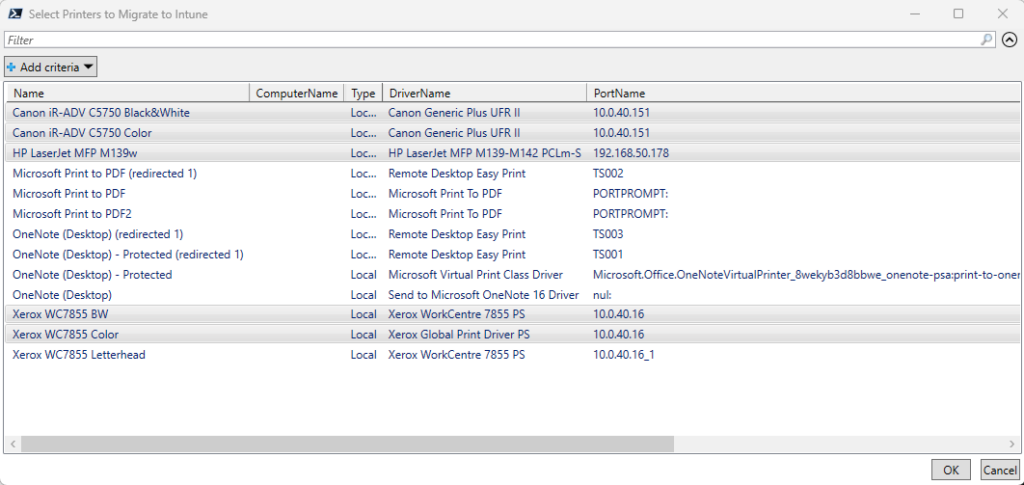
Next, the printer driver and connection information are gathered, install, uninstall, and detection scripts are generated, and the printer and driver are packaged for deployment as a Win32 app. You’ll get PowerShell output for the files/folders created and for whether the printer was successfully packaged. Only printer drivers that contain an infpath value from Get-PrinterDriver in PowerShell will be exported (the 64-bit driver), which should be the vast majority of printers. This also means that integrated Microsoft Printers (PrintToPDF, OneNote, etc.) will also be skipped. A log will be generated and stored in the logs directory for any skipped printers, including the reason why it was skipped.

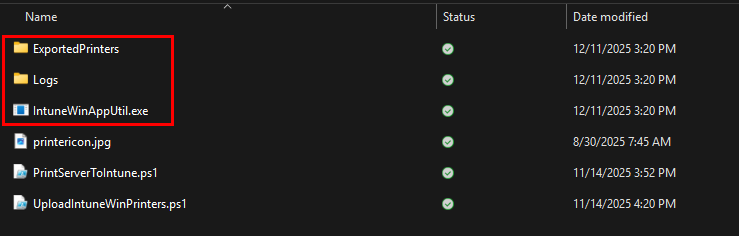
And in the same directory where the script is, there will be folders created for ExportedPrinters and Logs, and the IntuneWinAppUtil.exe
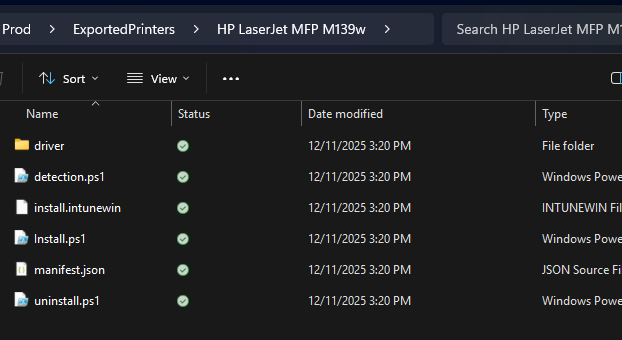
Inside the ExportedPrinters folder, you’ll find subfolders with the names of the printers that were exported, and under those, the contents of the Win32 app package containing the driver and scripts. There’s also a manifest file containing details from the export.
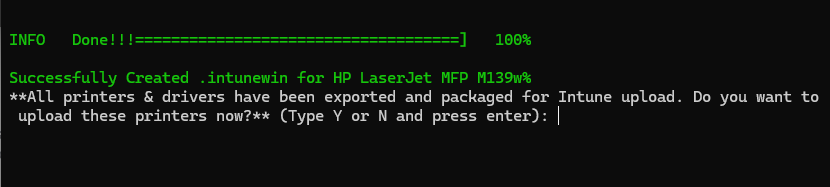
When the script finishes exporting and packaging all your selected printers, it will prompt you and ask if you want to upload the printers to Intune. If for some reason you didn’t want to do this, you can enter N and then run UploadIntuneWinPrinters.ps1 later, but we will enter Y and proceed to the upload portion.
You’ll see some module checks and, if any are missing, they will be installed. Then you’ll be prompted to authenticate to graph, and prompted if you want to assign the printers as available to the All Users group.

Next, the script will extract the contents of the .intunewin packages, create a new Win32 App, and then upload the package to intune. You’ll receive output with the progress/status:
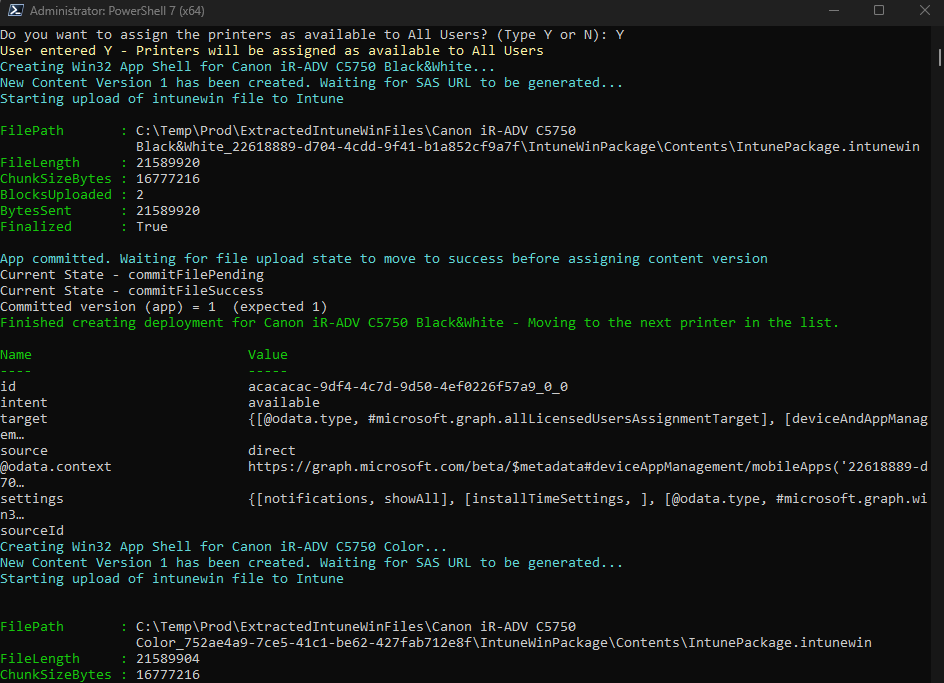
When finished, you’ll be disconnected from Graph, and a transcript will be located in the same directory. None of the files/folders that are created are deleted at the end of the script. I did this on purpose for a couple of reasons, but mostly if there were failures, you could retry them, and also so the contents could be inspected or viewed later. The additional files and folders are explained below:
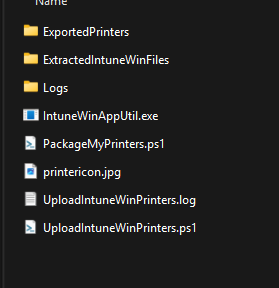
- Exported Printers:
- Generated by the packagemyprinters script. Each selected printer will have a subfolder with the name of the printers, the Intune install script, uninstall script, detection script, a manifest, driver folder containing the driver files, and the packaged install.intunewin file for a Win32 App.
- ExtractedIntuneWinFiles
- This contains the extracted .intunewin files for each intunewin file. The subfolders are named as “printername_IntuneAPPID”. When uploading a Win32 app, the IntunePackage.intunewin file is technically what gets uploaded to Intune (this is compressed under the parent install.intunewin file). In addition, there is other information about encryption and the package size that needs to be sent to Intune when uploading the file.
- Logs
- Contains a log with skipped printers from the PackageMyPrinters script
- IntuneWinAppUtil.exe
- Downloaded from github by the packagemyprinters script and used to create intunewin packages for each exported printer
- PrinterIcon.jpb
- Generic printer icon used in company portal when making printer available to users. You can change this if you want to use something else.
- UploadIntuneWinPrinters.log
- A transcript of the UploadIntuneWinPrinters.ps1 script
Lastly – I primarily work with SMB sized clients. I’ve tested this script on several environments, but 12 printers is the most I’ve used it on (at time of writing). If there are issues or feedback, please let me know. As I mentioned previously, for large printer fleets, this is not your best solution for management and deployment. You’re better off with a complete cloud print solution for managing large printer fleets. However, for SMB sized clients, this can save them money and make it easy to deploy their printers.