
If you work for an MSP with dozens of clients, you probably have a helpdesk that users from those clients call for help. When that happens, the Help Desk associates may need to connect to that user’s PC. Depending on your RMM, it may be difficult to locate the user’s device without the hostname. This is not difficult to find for a power user, but non-savvy users have no idea what you’re talking about when you ask them for their computer name. One particular client requested that we make it easier for their users to locate their computer name. It had been forever since I used BGInfo, but I remembered it from back in the day when many sysadmins used it on their servers.
BGInfo is a simple Sysinternals utility that takes a copy of your computer’s wallpaper, stamps that image with information about the system, and sets it as the wallpaper. Essentially, displaying desired system information directly on the desktop:
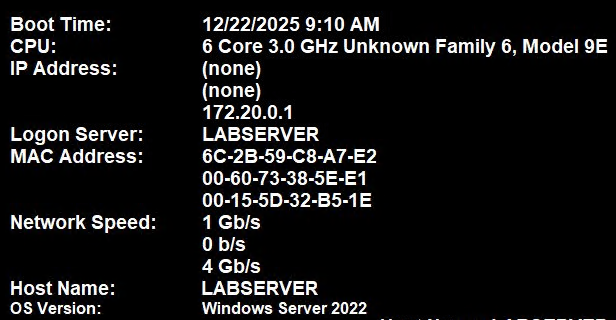
I am not a big fan of this, but that’s probably because it reminds me of 15 years ago, and seeing this on so many servers running 2003/2008. However, I can see the advantages from a user’s perspective when they are contacting support. BGInfo can be customized to show only the information about the system you want. In this case, we only want the hostname displayed. So, after downloading BFInfo and extracting its contents, launch BGInfo.exe, and the default config will appear.
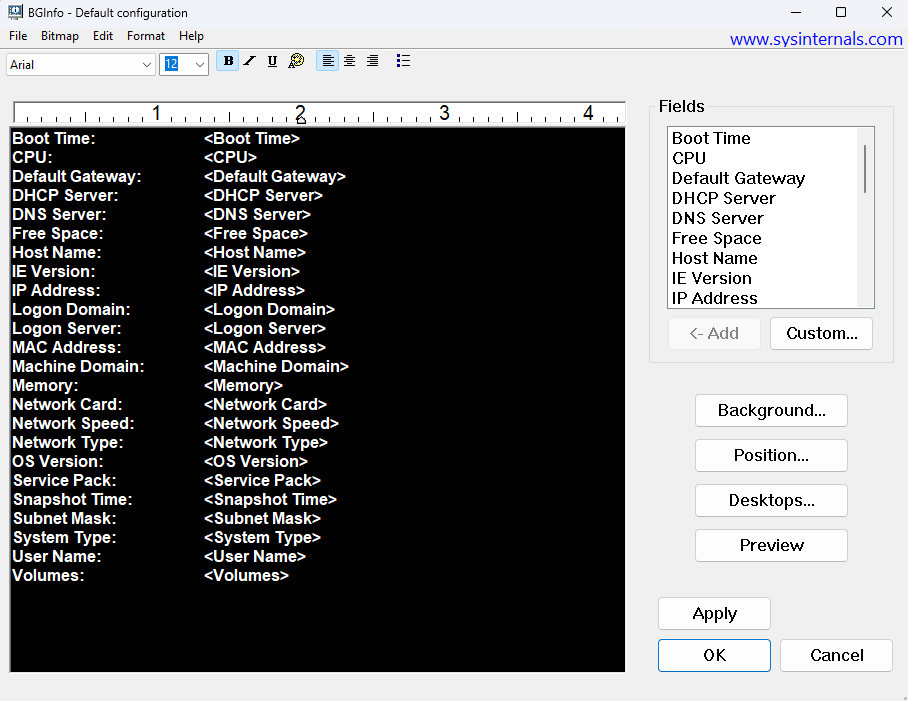
I’ll remove everything from the default configuration and add hostname. You can edit the background and positions using the buttons on the right, but I will leave the default which will make a copy of the background image, inject the hostname text in the bottom right of the image, and then set it as the background.
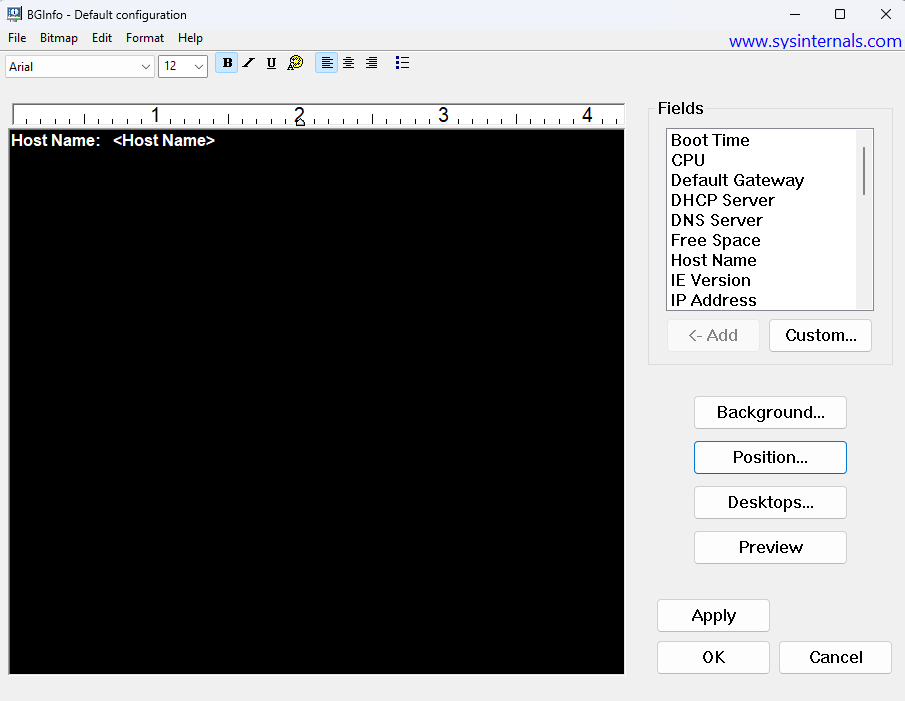
Once you have your chosen fields, click file > save as, and save your configuration file. Prior to saving, if you click the preview button, it will show you how this will look on your computer.

OK so how that you have your configuration file built, we need a way to push this to our devices. In addition, we will want this to run when users log on so its always present on their device. If they change their background, or multiple users use the device, it will always show. To launch BGInfo from the command line and reference a config file, we will use this command and run it in the user’s context:
Bginfo64.exe <configfile.bgi> /silent /nolicprompt /timer 0We will use a Win32 app to deploy with Intune. Our install script will copy the BGInfo files to the ProgramData directory, and then add a scheduled task that will run at logon of any user. Our install script is available on Github, but it is rather simple:
$Dest = "$env:ProgramData\BGInfo"
New-Item -ItemType Directory -Path $Dest -Force | Out-Null
Copy-Item ".\bginfo\*" -Destination $Dest -Force

$TaskName = "BGInfo-Logon"
$Trigger  = New-ScheduledTaskTrigger -AtLogOn
$Action   = New-ScheduledTaskAction -Execute "C:\ProgramData\BGInfo\Bginfo64.exe" -Argument "C:\ProgramData\BGInfo\hostname.bgi /silent /nolicprompt /timer 0"
$Principal = New-ScheduledTaskPrincipal -GroupId "BUILTIN\Users" -RunLevel Limited
$Settings = New-ScheduledTaskSettingsSet -AllowStartIfOnBatteries -DontStopIfGoingOnBatteries -MultipleInstances IgnoreNew

Register-ScheduledTask -TaskName $TaskName -Trigger $Trigger -Action $Action -Principal $Principal -Settings $Settings -Force | Out-Null
Although we will deploy the Win32 app in the system context, the scheduled task will run in the user’s context with the action of:
C:\ProgramData\BGInfo\Bginfo64.exe C:\ProgramData\BGInfo\hostname.bgi /silent /nolicprompt /timer 0We also have an uninstall script if we want to remove the task:
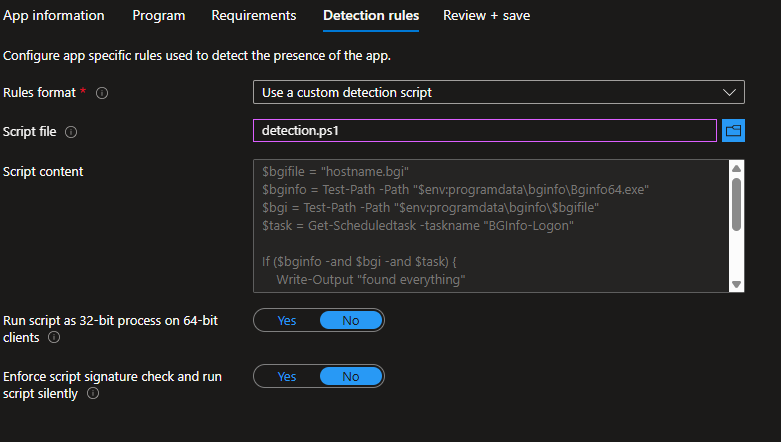
Unregister-ScheduledTask -TaskName "BGInfo-Logon" -Confirm:$false -ErrorAction SilentlyContinueLastly, we have a custom detection script that will check for BGInfo64.exe, the configuration file, and the scheduled task. If they all exist, the script will pass a successful installation back to intune.
$bgifile = "hostname.bgi"
$bginfo = Test-Path -Path "$env:programdata\bginfo\Bginfo64.exe"
$bgi = Test-Path -Path "$env:programdata\bginfo\Bginfo64.exe"
$task = Get-Scheduledtask -taskname "BGInfo-Logon"

If ($bginfo -and $bgi -and $task) {
    Write-Output "found everything"
    exit 0
}
else {
    write-output "something is missing"
    exit 1
}
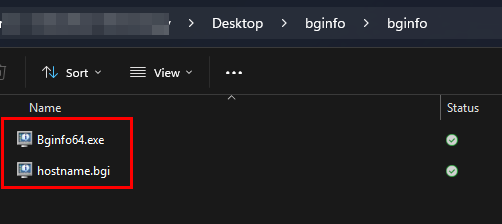
All files are available in the same structure on GitHub. The intunewin file is also available if you want to use the exact same config file to only display the hostname. To put this all together, put the install script in a directory and then create a subdirectory named bginfo, which should contain the BGInfo.exe file and the configuration file you created.
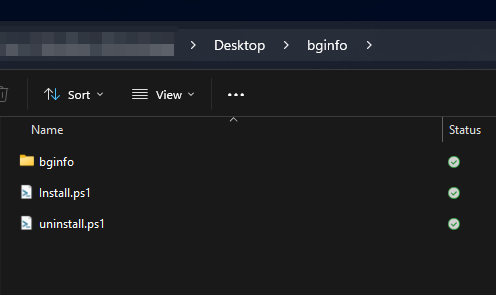
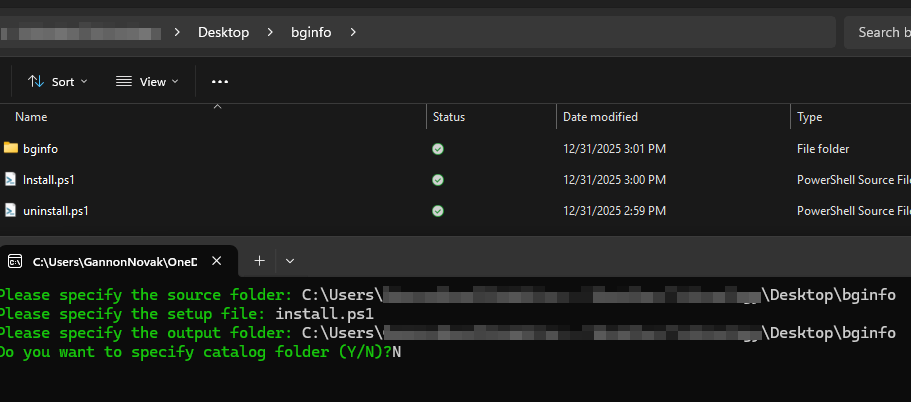
Package everything in the top level folder as an intunewin file and specify install.ps1 as the installation file
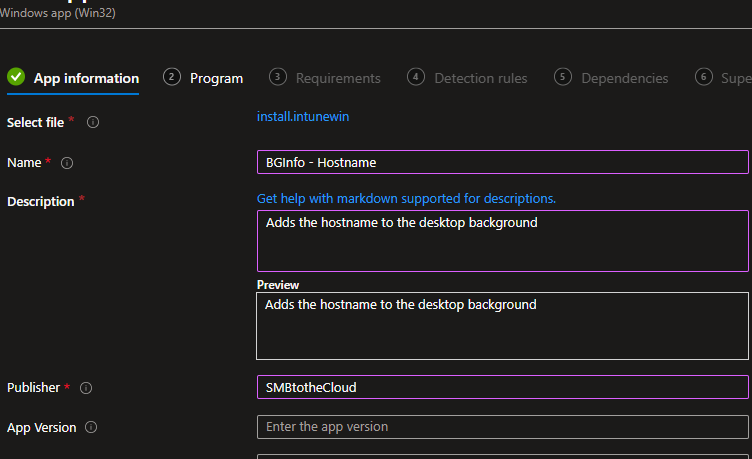
Create a new Win32 app with the intunewin file we just generated:
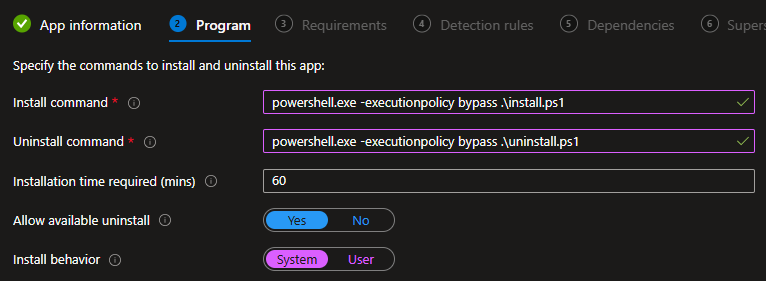
Add install and uninstall commands like the image below and install as system:
Add your requirements, and for detection method, we will specify our custom detection script:
Finish the app creation and assign to your groups. Once the devices start checking in, they’ll have the BGInfo files copied to the programdata directory, and a scheduled task will be added that runs at user logon to stamp the desktop with the hostname of the computer.
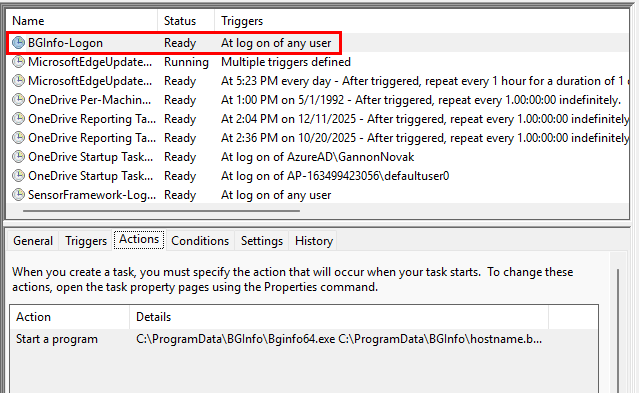
And the next time a user signs in, they’ll have the desktop background stamped with their devices’s hostname

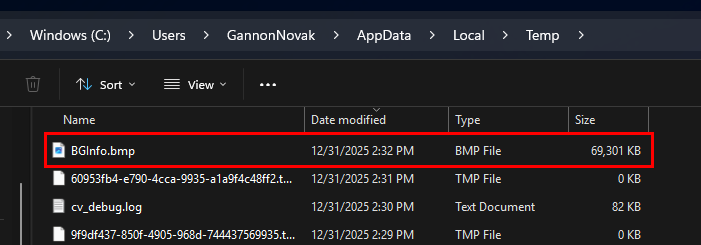
If you’re wondering where the Image is stored, it gets stored in the users %TEMP% directory with the name BGInfo.bmp. Everytime BGInfo runs, it will overwrite this file if it already exists.
That’s all!