
Overview
This blog covers something that ended up taking wayyyy more time and energy than I thought it would, and taught me that configuring location settings on Windows 11 is far more complicated than you’d think. This all started with a client who told me they couldn’t get location services enabled on their devices. This client had a settings catalog policy applied to the devices, which allowed the location service, and also allowed the users to enable/disable location services (supposedly).
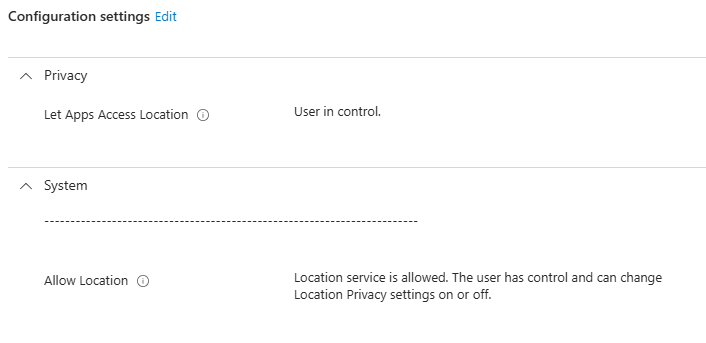
However, the location services were off, and greyed out so they could not be enabled.
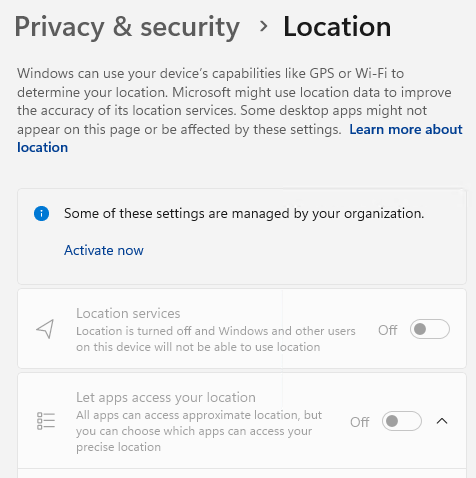
I started digging into location settings on how they work in Windows and are managed by Intune, and I found some misleading results. Some applications may require location services, so some organizations need to allow this, or at least allow the users to control the location settings. However, in order for a user to control if an app can access location information, Location services must be enabled. In other words – there is no per-app control for users if location services is disabled completely, which was the case for this client. We can see from the screenshot above, there’s a notice that location settings are managed by the organization, and the option to enable is greyed out.
One thing that should be clarified, which the Intune policy doesn’t make clear, is that only local admins can enable/disable Location Services. (https://support.microsoft.com/en-us/windows/windows-location-service-and-privacy-3a8eee0a-5b0b-dc07-eede-2a5ca1c49088). So, even with the policy set like above to “The user has control and can change location privacy settings on or off“, a normal user cannot enable/disable location settings. In addition, location services are system-wide, so they’re either enabled or disabled for all users. In a one-off situation, a local admin can sign in, enable location settings, but if this needs to be changed for an entire device fleet, you’ll want to use Intune another MDM/RMM to change this.
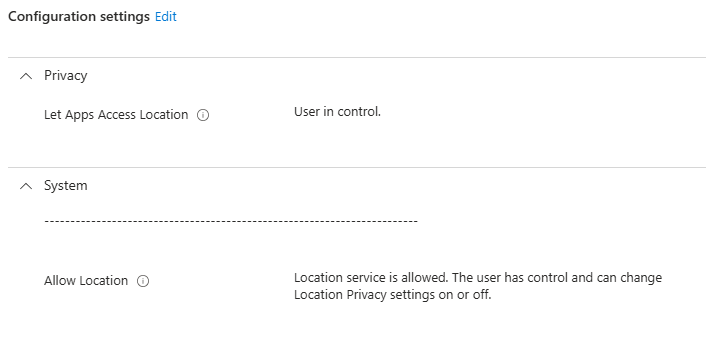
The rest of this blog will look at how the devices got to this state, dig some more into the location settings, and then go down a giant rabbit hole on getting these set how we want. If you want the simplest fix with the least flexibility, change your Intune policy to force enable location settings on. This will enforce that location services are enabled for all users. However, this doesn’t give the user any control over which apps can access location services, as you’ll see the whole policy states – Force Location On. All Location Privacy Settings are tottled on and grayed out. Users cannot change the settings, and all consent permissions will be automatically supressed.
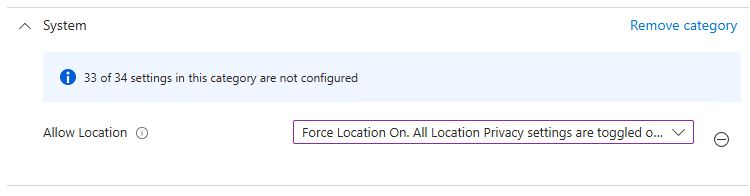
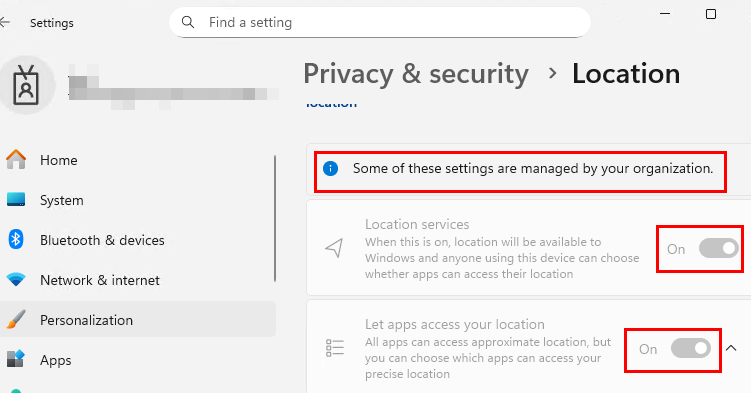
You end up with a device where location settings are all enforced ON and the user has no control. Not what we wanted in this case, but certainly the simplest way to turn location services on.
How’d this happen in the first place?
So back to the question of how the devices got like this – especially because the settings catalog policy isn’t explicitly disabling location services. This client was going through a migration, and only newly provisioned devices that were Entra joined and managed by Intune had the issue. All affected devices had two things in common – they were managed by all the same Intune policies, and they were provisioned using Autopilot.
If we enrolled a device into Intune manually, this wasn’t happening. Prior to manually enrolling a test device into Intune, we verified location services were enabled. After enrolling, the location services remained on. We couldn’t change them since we weren’t a local admin, which was expected, but the user had control to enable access to location access for apps:
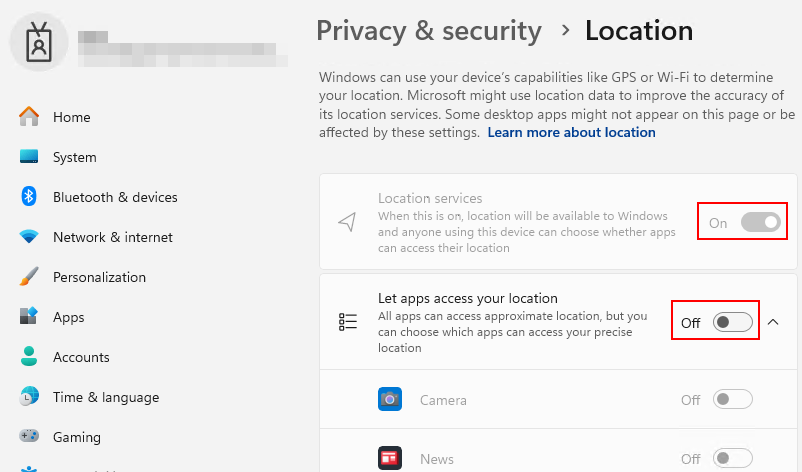
Now the attention was on Autopilot. Could Autopilot really be disabling location services? Well, it turns out, yes. Just about every organization using Autopilot uses it for the ease of provisioning and minimizing interaction with the initial OOBE setup. With that, comes skipping or hiding parts of the initial setup, such as the privacy settings:
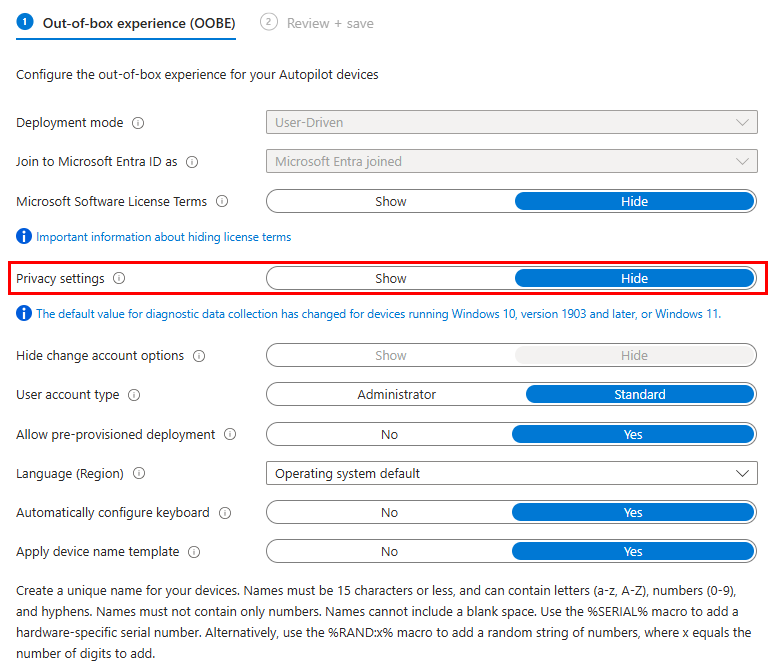
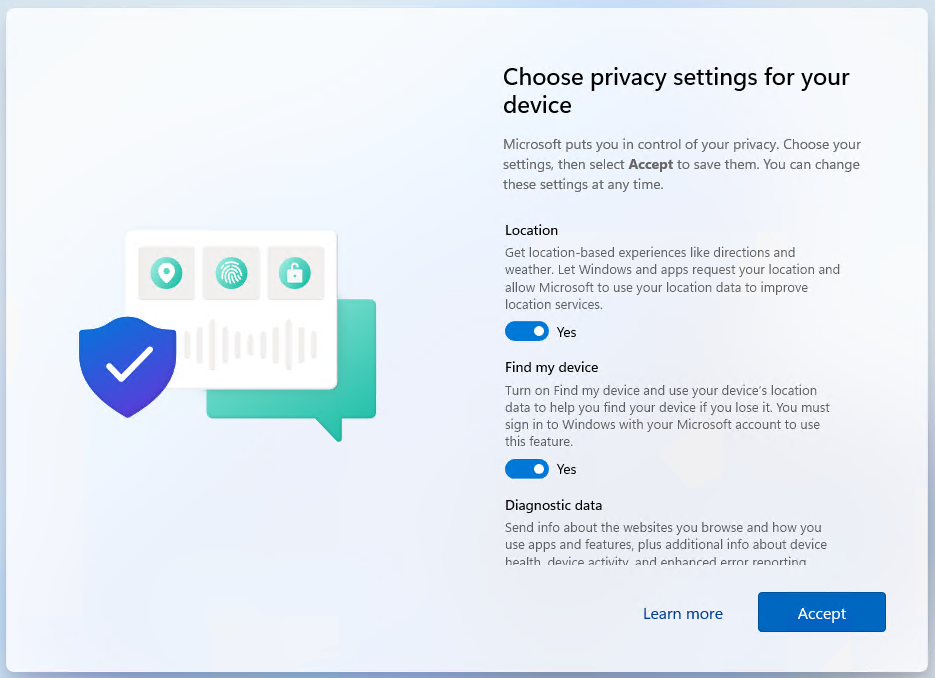
By skipping privacy settings, we are hiding the screen shown below, which asks the user if they want location services enabled. By skipping the privacy settings, the default behavior is to disable location services.
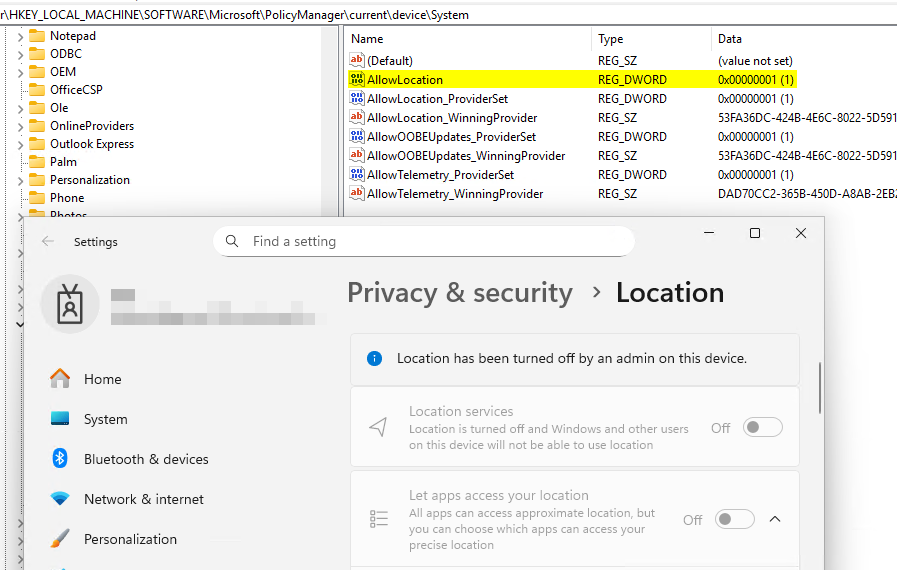
To verify this, I isolated a device from all apps/policies and ran it through autopilot. We can see that is states “Location has been turned off by an admin on this device”, which was technically autopilot turning location services off.
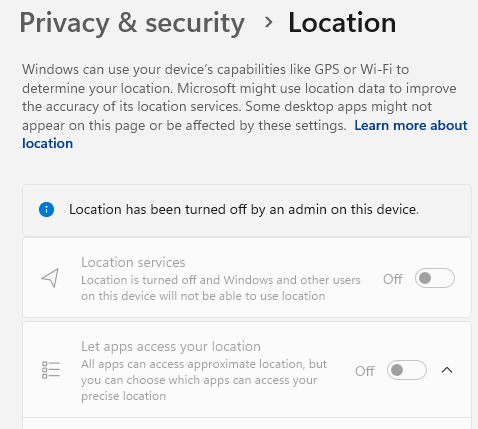
And then to double check, I applied the location policy that was in place to allow users to change location settings, and allow them to be in control.
We can confirm the policy applied by checking the registry and seeing the AllowLocation DWORD value set to 1, which is to let the user decide, but these options remain off and greyed out since location services is off, and as previously mentioned, non-admin users can’t enable location services.
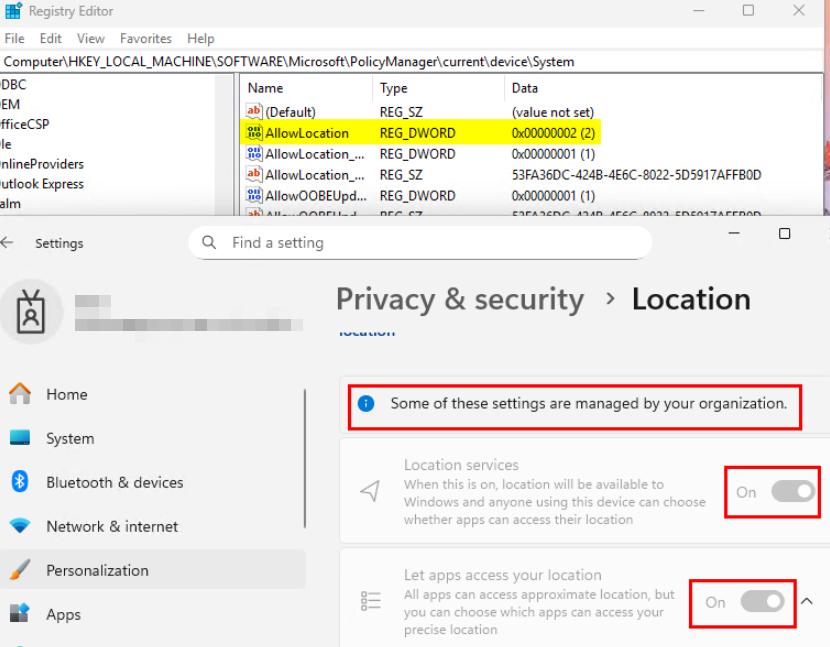
After changing the settings catalog policy to force location on, we can see the registry value for AllowLocation is set to 2, meaning its enforced to on, and location services is enabled on the device. However, the user has no control over which apps can access location services. Its forced on and enabled for all apps.
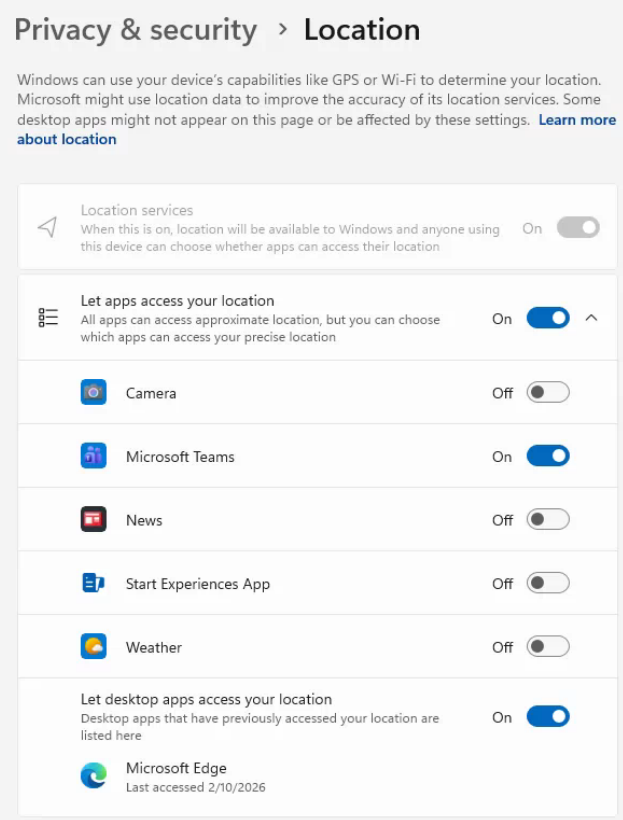
If that works for you, great. But, that’s now what we wanted for this organization. We want location services On and Let Apps access your location On, but to allow the user to toggle let apps access your location on/off, and if its on, allow them to chose which apps can access location services. We want it to look like the screenshot below, and this is where things became way harder than pushing Intune policy.
The Rabbit hole
After hours of testing and conversing with AI to help me troubleshoot this, I have some answers. First, its impossible to achieve settings like the screenshot above by using Intune policy and/or registry edits (Location Services ON and greyed out, but allow the user to let apps access location). Trust me, I tried all combinations of the registry edits and CSP settings, and you either end up with everything ON and greyed out, or OFF and greyed out. What was extremely frustrating, is I was able to use regchangesview to see exactly which reg settings were being modified when toggling on/off, but seting those values never worked as intended, and rebooting would flip some of them back to how they were before. Again, all I could achieve was all settings on or off. After all my attempts at registry and policy settings failed, I shifted my attention elsewhere.
Enabling Location Services
In the current state, location services were off on all these target devices. So, we need to get it to an enabled state, and then also toggle Let Apps Access your location to ON, but still allow the users to dictate which apps could use location services. I could make this work as intended on a fresh Windows 11 device by manually enabling location services as an Admin. This forces the toggle ON for location services. Logging in as a standard user would show location services as ON and greyed out (expected since standard users can’t change this), and then I would need to toggle Let apps access your location to on as the standard user. Therefore, I needed to replicate to actions
- The exact action that happens as an admin user when toggling location services to ON in Windows settings
- The exact action that happens as a standard user when toggling “Let apps access your location” to On in Windows settings
For this, we started with ProcMon. After firing up ProcMon, I started a capture, enabled location services, and then stopped the capture. If we look for processes that were created, we can see this one with the path of c:\windows\system32\SystemSettingsAdminFlows.exe
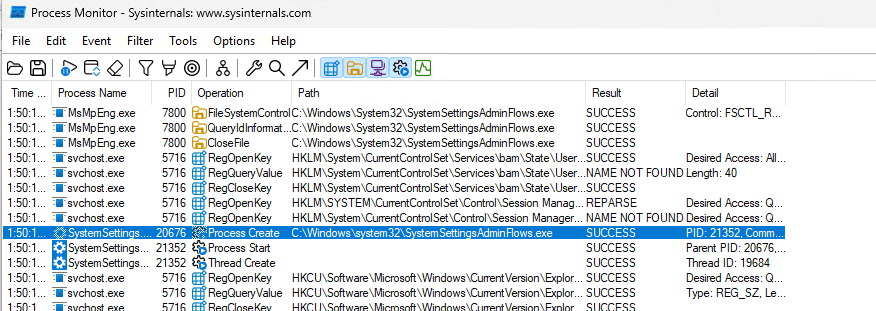
If we take a closer look, we can see the exact command line that is issued behing the scenes – SystemSettingsAdminFlows.exe SetCamSystemGlobal location 1
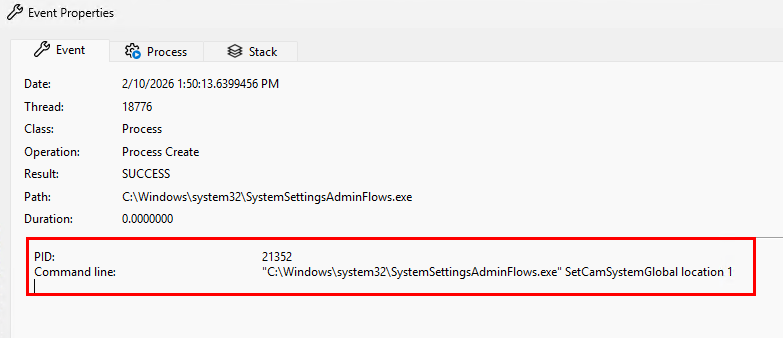
Testing that on my device does indeed toggle location on/off. This must be ran from an admin or system command prompt. So, we have:
- Turn location services on from CMD –
SystemSettingsAdminFlows.exe SetCamSystemGlobal location 1 - Turn location services off from CMD –
SystemSettingsAdminFlows.exe SetCamSystemGlobal location 0
Everytime that command is executed, the value of HKEY_LOCAL_MACHINE\SOFTWARE\Microsoft\Windows\CurrentVersion\CapabilityAccessManager\ConsentStore\location is set to Allow/Deny. So, we can use that as a detection method. However, simply changing that registry value manually has no effect on if location services are on or off.
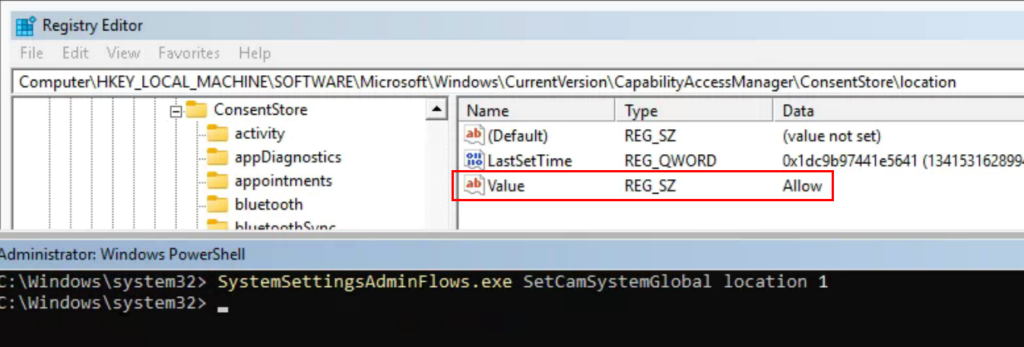
After continuing to dig through this, the command above is technically writing a 1 or 2 (enabled or disabled) value for the System Global Location capability in the CapabilityConsentStorage database. More on this later, but this is the source of truth whether location services are on or off.
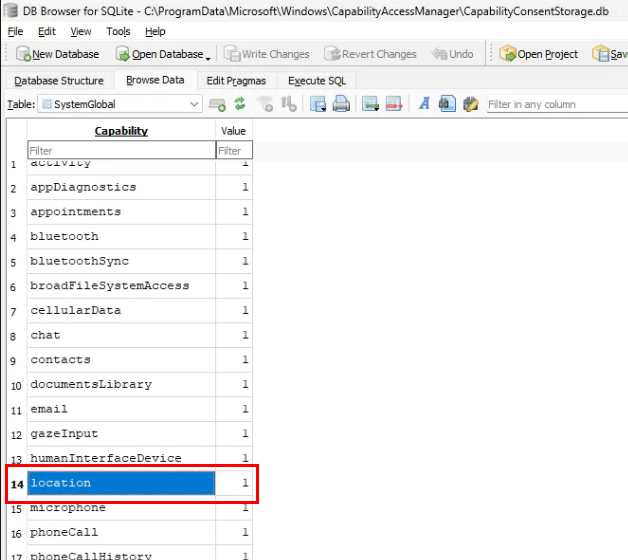
Now we have a way to Enable Location services, and a method to detect if its on or off. Scripts to do this are at the end of this blog. One problem is solved.
Enabling Let Apps Access your Location
Since location services was previously off, enabling it with the above method does not automatically enable allowing apps to access your location:
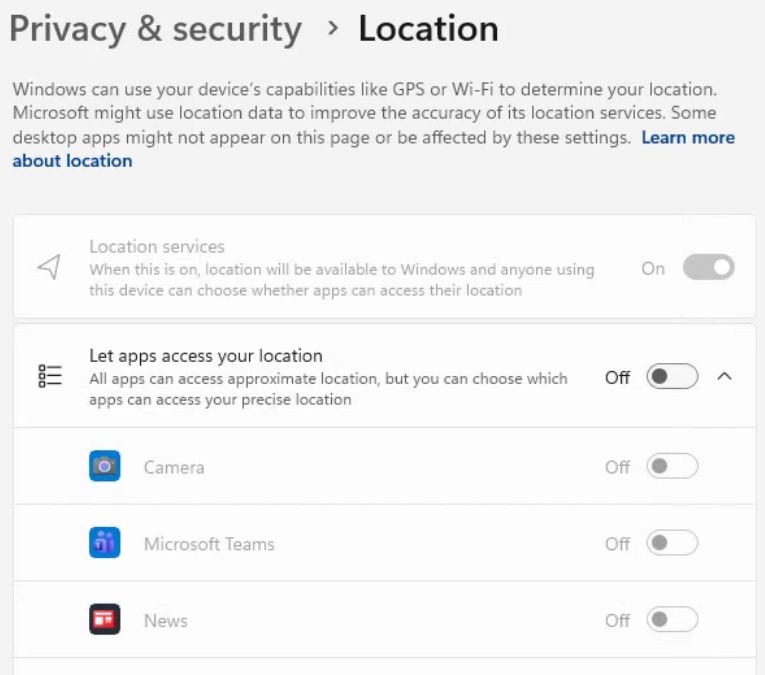
This is the part that was sort of mind boggling to me. There’s no way to toggle this on by way of Intune policy or registry. I triple checked everywhere and found this Reddit thread confirming that other people were having this same issue. Unfortunately, procmon didn’t have the same luck that I had for toggling location services on, but it did give me some clues that lead to a solution.
There was no smoking gun with a command that we could run like there was to enable location services. Instead, all I kept finding was that the Capability Access Manager Consent Storage database was being accessed, and then registry changes were being made.
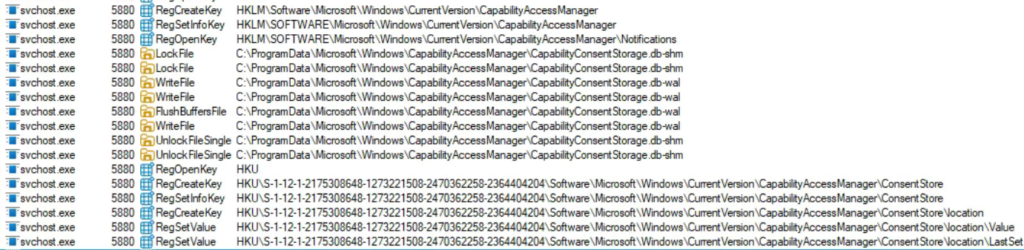
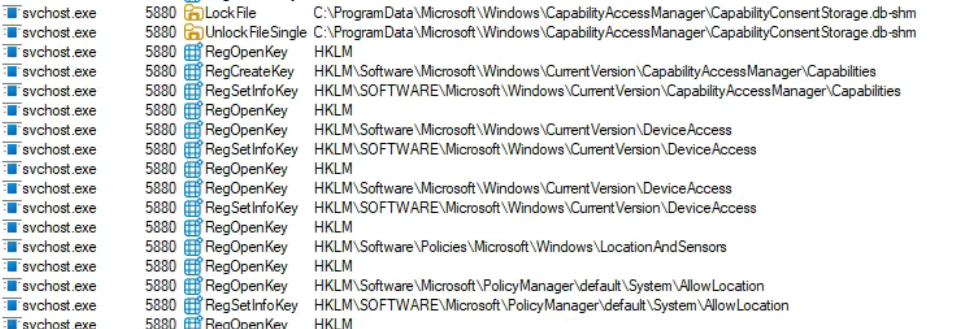
And all of these operations were coming from the Capability Access Manager Service:
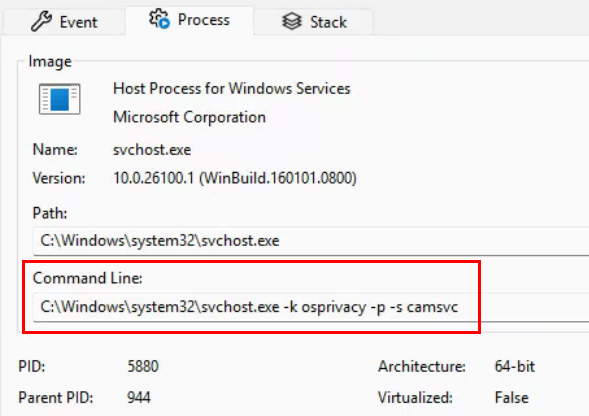
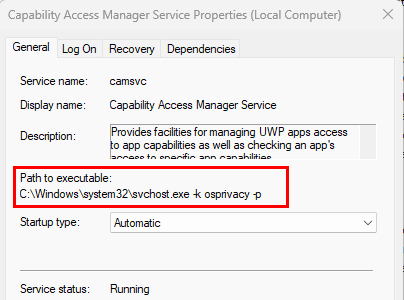
It appears the CapabilityConsentStorage database is the source of truth for allowing apps to access location, and the registry values are simply stamped with the last change made in the database. Toggling the switch in Windows settings to ON will modify the database value, and then stamp the registry with the values showing this is enabled/allowed, like the example below:
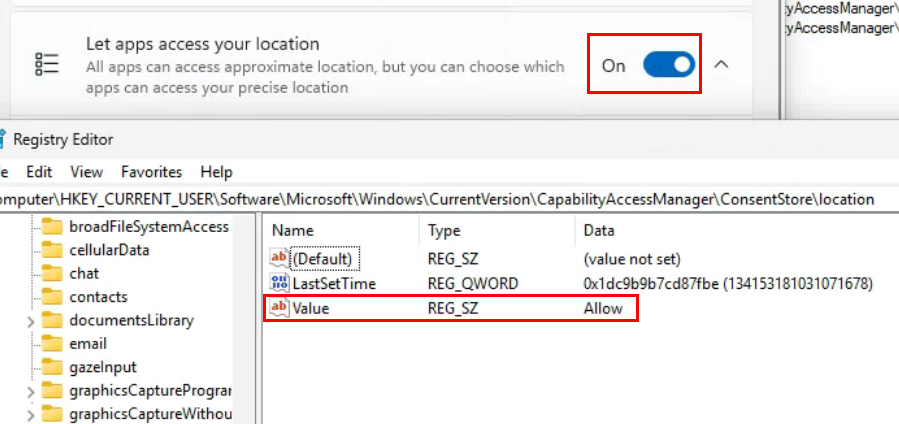
BUT, as previously mentioned, setting that value in the registry does not write back to the database or flip the toggle, so the setting never gets enabled/disabled by simply modifying the registry. If I try to set all the reg values to deny that get changes when this setting is enabled, nothing happens since the database is the source of truth.
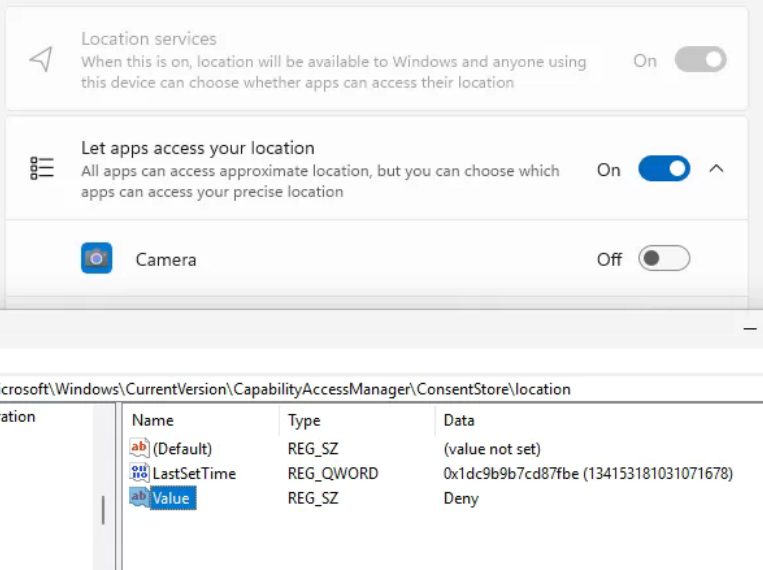
Therefore, we need to see if we can figure out what the heck is happening in the background when we toggle that switch and see if we can script it somehow. After digging through more of the procmon results and not finding anything conclusive, I turned my attention to the CapabilityConsentStorage database, which only the system account has access to.
After a little research, I found that this database is a SQLite database. I downloaded DB Browser for SQLite and launched it as the system user, then opened the database file C:\ProgramData\Microsoft\Windows\CapabilityAccessManager\CapabilityConsentStorage.db since this is what was being hit by Procmon. The database was simple and only contained 9 tables:
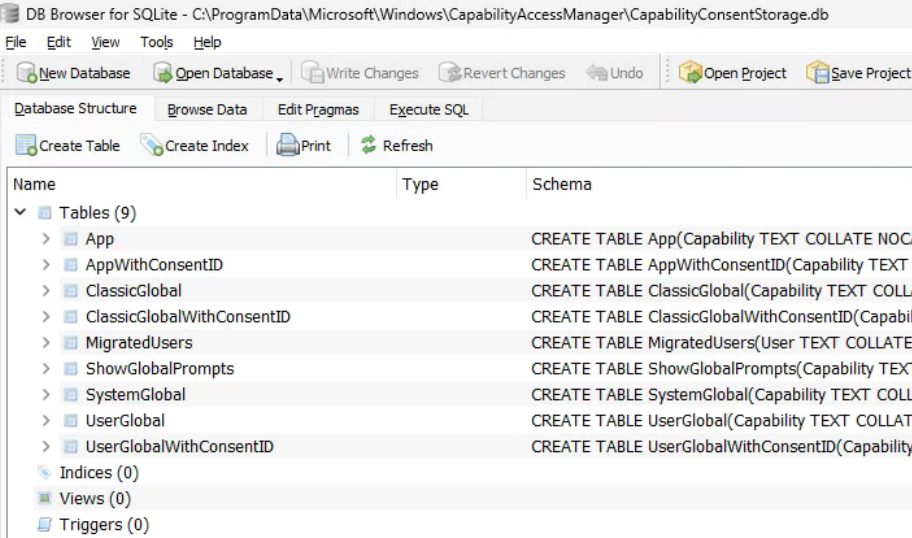
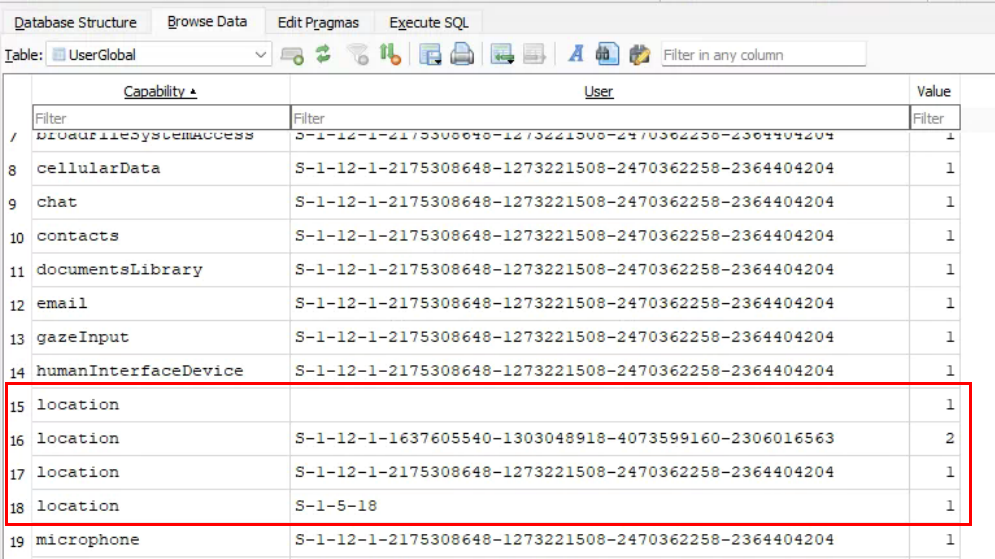
After poking around and toggling Let Apps Access Your location to on/off, I found the value that was being changed. In the User Global table, each user that has logged into the device has a Location capability value associated with their SID. The location value in the UserGlobal table is the toggle for Let apps access your location. The value 1 is enabled and 2 is disabled:
Editing this and writing the change to the database didn’t seem to change anything at first, but if we restart the camsvc service, then it will toggle on/off after the service is restarted:
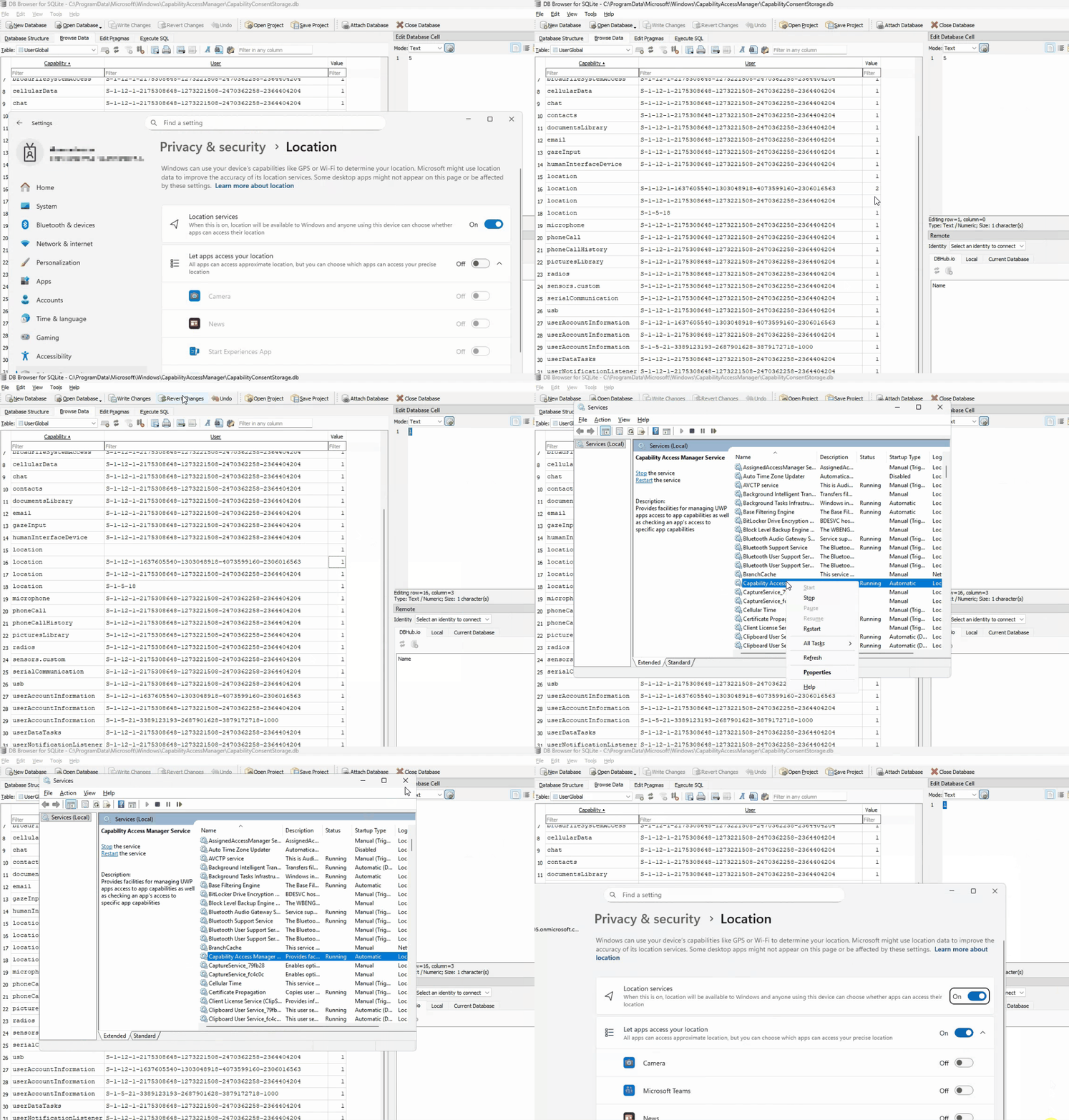
OK… so we have successfully replicated what the heck happens on the backend when that switch is toggled. To summarize, when the switch is flipped, the camsvc (running as system) writes the correct value (1 or 2) to the CapabilityConsentStorage database, then stamps the registry with the values (allow/deny) to show this has been turned on/off. We know how to manually do this, but now I needed a way to change this value through a script. Luckily, after feeding AI with this information and going back and forth, a script was created that identifies the logged in user, and sets the desired value. How you deploy it, is up to you, you could use a remediation, a scheduled task, or a platform script.
Scripts are linked below. You can combine them into a single script, or maintain separate scripts for enabling location services, and then enabling apps to access location, which will allow the user to be in control. I personally have them both assigned a remediation and platform scripts.
Enable Location Services Detection/Remediation – run as system and assign to devices.
Enable Let Apps Access your Location Detection/Remediation – run as system and assign to users.
Hopefully some future policy updates will make this easier.
Great write up, this should save me some time and frustration!
Thanks
Your script resolved my issues.
Impressive work finging the workaround!
Thank You!