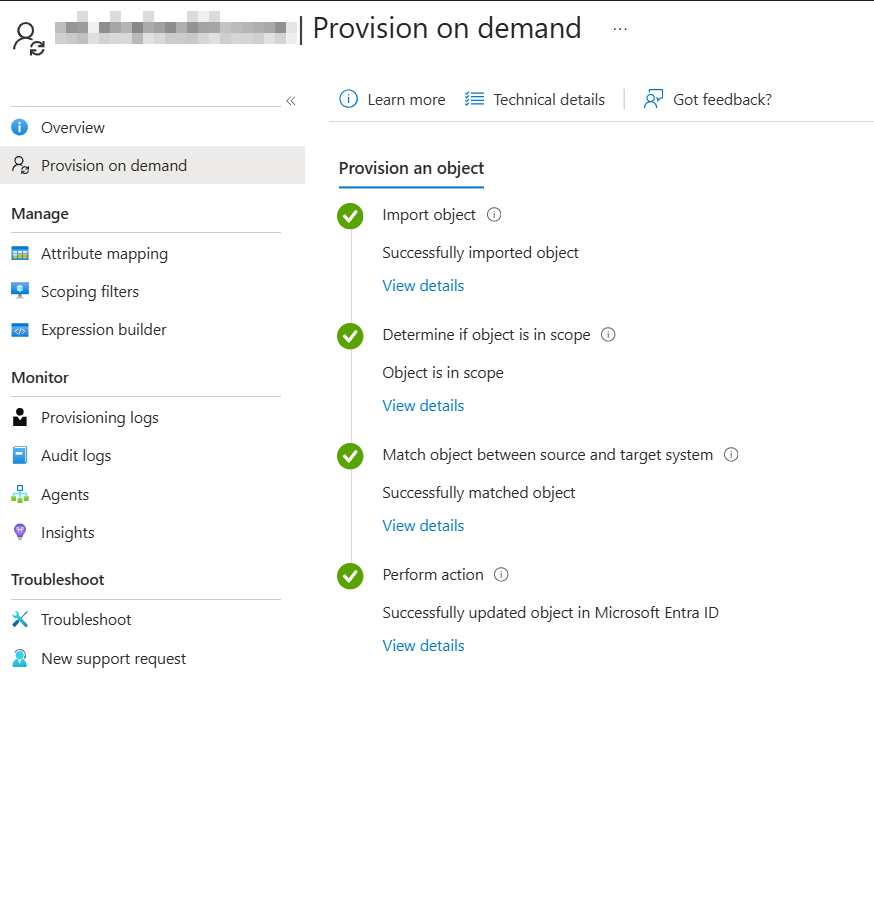
We all know what Entra Connect is – The tried and true user and device synchronization tool that’s installed on a server, and is managed from that server. Its been around for over 10 years (technically longer if you include its predecessor, DirSync). I still see Entra Connect in production at organizations far more than I see cloud sync. Mostly, because Entra Connect was already implemented, or because Cloud Sync’s limitations didnt fit the customer’s needs. That’s becoming less and less of an issue today, though. For someone who works primarily in the SMB space, there’s not many reasons left why you’d choose Entra Connect over Cloud Sync today. A complete comparison can be found here. So, if you’re not used to Cloud Sync, you’d better get used to it.
Hopefully, you’re trying to eliminate on-prem AD altogether, but we all know that’s easier said than done for some organizations. As a cloud consultant or MSP, as you obtain new clients, there’s also the situation of having to support or maintain what you inherit for some time before changes can be made. That can be messy, but its why we have jobs and its why people hire us to make things right. So, what happens when you inherit a client using Entra Cloud sync where some users are syncing, some aren’t, some have separate cloud and on-prem Identities, and we need to get things all matched and configured? We need to get the correct identities matched up on prem and in Entra so they sync properly, and with the correct identity. The situation we see too often is organizations aren’t using directory synchronization at all. They have an AD environment and an Entra environment with two completely separate identities.
For the rest of this blog, we’re assuming cloud sync is already in place and functioning for most users. If you found yourself here for trying to do a fresh implementation of cloud sync, we won’t be covering that. There are tons of other blogs out there on that topic. We will walk through a common problem where an on-prem user identity is failing to match to an existing cloud identity. Typically, as long as the UPN and primary SMTP address match an identity in Entra, then a soft-match succeeds on its own. However, for proclematic identities, if we try to provision on demand, you may get an error similar to this:
An attribute value violates a uniqueness constraint. Please study the values of the attributes, comparing them with the attributes of already-existing objects in Azure Active Directory and resolve the conflict by modifying the value in the source directory. Additional Details: Unable to update this object because the following attributes associated with this object have values that may already be associated with another object in your local directory services: [ProxyAddresses <pii>SMTP:user@domain.com</pii>;]. Correct or remove the duplicate values in your local directory.
The first thing to do is simply verify that the UPN and primary SMTP address for the problematic user aren’t already in use by another synchronized user or group. In most cases, they’re not, since most organizations are using a the UPN as their primary SMTP address. After clearing that up and verifying that the problematic user does indeed have a unique primary SMTP address, we can forge ahead with hard matching. Some quick background on matching before we proceed – When Cloud Sync or Entra Connect is first implemented, it checks for a hard match using the incoming AD source anchor and the existing cloud account’s Immutable ID first. If no hard match is found, it attempts a soft match using the UPN or primary SMTP address. After a successful match, future synchronizations use the source anchor to maintain the association between the two identities.
One other thing before we continue – a hard match can still fail if certain conditions are met. Make sure these don’t apply before continuing.
- The cloud account already has onPremisesObjectIdentifier set.
- The cloud account is assigned a privileged Microsoft Entra role.
- The cloud account is eligible for a privileged Microsoft Entra role.
- If the BlockCloudObjectTakeoverThroughHardMatchEnabled feature is enabled on the tenant, which prevents a hard match from taking over an existing cloud object
So, to fix this we need to understand Cloud Sync behavior. Cloud Sync uses mS-DS-ConsistencyGUID as the source anchor when that attribute is populated and falls back to objectGUID when it is empty. In this example, we verified in Attribute Editor that mS-DS-ConsistencyGUID was empty (this will always be empty if the user was never previously synced). Therefore, we will focus on the ObjectGUID. We can run these PowerShell commands to obtain the ImmutableID (source anchor) from AD. Note that it must be converted to Base64 since that is what Entra Requires:
$ADUser = Get-ADUser -Identity "username"
$ImmutableID = [Convert]::ToBase64String(
    $ADUser.ObjectGUID.ToByteArray()
)
$ImmutableID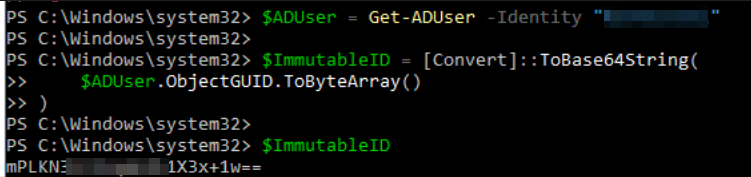
We can see in the screenshot above that the ImmutableID value is displayed from teh $ImmutableID variable. Copy this since we will need it later.
Next, we need to take a look at the cloud identity. On the affected Cloud Identity, copy the ObjectID from Entra. This can easily be obtained from the user details page in Entra.
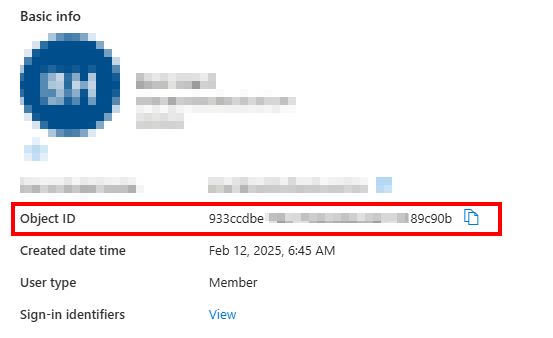
Now we can connect to MS Graph and verify some things about the user. You’ll need to install the Microsoft.Graph.Users module if you don’t already have it. This will verify that the user identity is not synced and that there is no ImmutableID value present on the cloud object:
Connect-MgGraph -Scopes "User.ReadWrite.All"
$CloudObjectID = "<objectIDfromEntra>"
$CloudUser = Get-MgUser -UserId $CloudObjectID -Property Id, DisplayName, UserPrincipalName, OnPremisesSyncEnabled, OnPremisesImmutableId -ErrorAction Stop
$CloudUser | Format-List Id, DisplayName, UserPrincipalName, OnPremisesSyncEnabled, OnPremisesImmutableId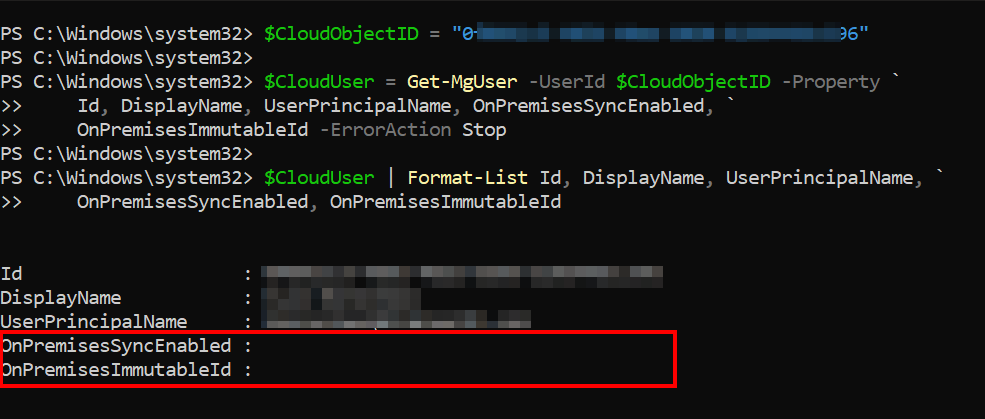
Lastly, we can set the immutableID in entra to match what is in AD so there is a hard match on the two identities. We will set the $ImmutableID variable value to what we obtained in the first step:
$ImmutableID = "<base64ObjectGUID>"
if ($ImmutableID) {
    Update-MgUser -UserId $CloudObjectID -OnPremisesImmutableId $ImmutableID -ErrorAction Stop
}
else {
    throw "Immutable ID is empty. Update cancelled."
}
Get-MgUser -UserId $CloudObjectID -Property Id, OnPremisesImmutableId | Format-List Id, OnPremisesImmutableId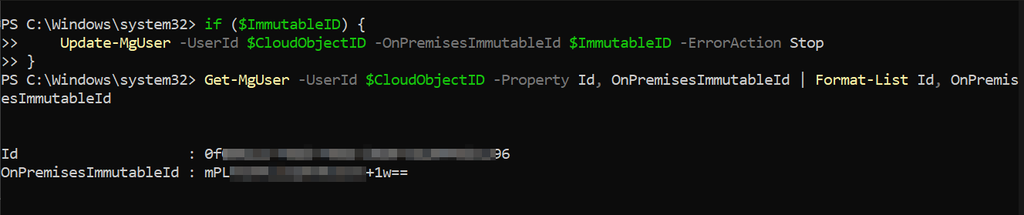
Your output should be like the example screenshot abose where there is now a value for OnPremisesImmutableID. Now that it is set, we can try to do a provision on demand for that user. This time, it should succeed since we have a hard match with the same ImmutableID on both sides. Remember, If password hash synchronization is enabled, the cloud account will use the AD password after the password hash synchronizes. Make sure to communicate that to the end user.