
Microsoft 365 Business Premium is the ultimate go-to licensing recommendation for small businesses using Microsoft 365. It is one of the best values in the M365 license lineup because it combines productivity applications, device management, endpoint protection, email security, and identity controls in a single package. It really hits on all the essentials, and more, for smaller organizations of 300 users or less.
An important component of Business Premium is Microsoft Entra ID P1. P1 provides Conditional Access, which allows us to control authentication based on conditions such as the user, application, device state, location, and authentication method. We can use those conditions to do things like require MFA, block legacy authentication, restrict unmanaged device access, and apply stronger access controls for administrators. For most SMBs, Entra ID P1 alone is a secure foundation. Especially when paired with some additional third-party tools.
Some organizations already have a solid Business Premium security baseline and are asking what else they can do to reduce risk and further protect their organization. Outside of Microsoft’s stack, I’m personally a big fan of Huntress and regularly recommend their MDR & ITDR capabilities. However, within the Microsoft identity ecosystem, the conversation immediately starts with using risk-based access controls. Risk-based conditional access is relatively simple to configure and provides an immediate benefit to any organization. When it comes to SMBs, they typically don’t have a dedicated IT or Security team, so the more automated and intelligent they can make their security controls, the better.
To start leveraging risk-based conditional access, you need Entra ID P2 licensing for any user being targeted by the policy. So, naturally this opens the conversation with clients on the other features of P2 licensing, and if it’s worth it for their organization. You may think the P2 license is a straightforward upgrade or addon, but Microsoft likes to make things interesting with licensing. We’ll try to focus on useful P2 features for SMBs throughout this blog, but we need to go off course a bit to clarify some things.
Navigating Entra ID P2 Licensing
Entra ID P2 can be obtained in a few different ways. This depends on your current licensing situation, and if you want other features in addition to what P2 adds.
Looking specifically at Entra ID P2, it’s bundled with M365 E5, M365 E7, Enterprise Mobility + Security E5, and Microsoft Defender Suite for Business Premium. It’s also available as a standalone addon. If it’s Entra ID P2-specific features you’re after, the addon cost for SMBs may be much greater than it is for larger organizations. For example, the closest equivalent enterprise license to Business Premium is M365 E3. Both Business Premium and M365 E3 come bundled with Entra ID P1, but there is a special Entra ID P2 addon (through NCE CSPs) for M365 E3.
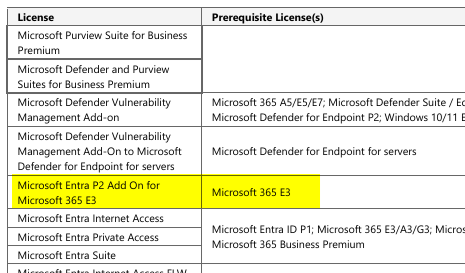
This special addon comes at a significant price difference since it’s essentially a P1 to P2 upgrade for the missing features. For an annual commitment billed monthly, and Entra P2 Add On for M365 E3 is $3.15/user/month. However, SMBs using Business Premium, which already includes P1 just like M365 E3, must purchase the full Entra ID P2 addon, which runs $10.50/user/month (This pricing is all based on US NCE CSP pricing as of August 2026). That’s a difference of $7.35/user/month. For an organization with Business Premium, that’s nearly $9,000/year more per 100 users than an M365 E3 licensed organization. So, Microsoft, if you’re reading this, maybe you can offer a Business Premium P1 to P2 upgrade? With that said, Organizations leveraging Business Premium get their own special add-on license. The Microsoft Defender Suite for Business Premium license is only available as an addon for Business Premium. This contains Entra ID P2 as part of the bundle, is the same cost as the standalone P2 license ($10.50/month with annual commitment), and includes several more security features. Again, if all you’re after is the Entra ID P2 features and you’re on Business Premium, you’ll be paying $10.50 regardless, so you should get the Defender Suite for Business Premium, even if you don’t plan to implement the additional security features right away.
The Defender Suite for Business Premium is a great value. Especially if you plan on leveraging all the security features. This bundle was released almost one year ago, and you can read the full announcement here Introducing new security and compliance add-ons for Microsoft 365 Business Premium | Microsoft Community Hub. It essentially elevates all the security features of Business Premium to the next level. You get Entra ID P2, Defender for Endpoint Plan 2, Defender for Office 365 P2, Defender for Identity, and Defender for Cloud Apps at a huge discount.
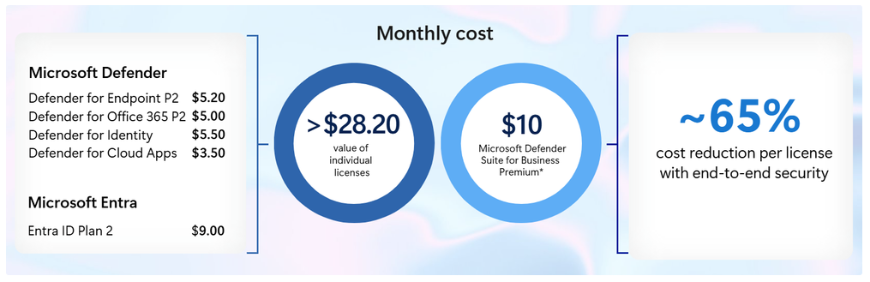
Although the financial burden to leverage P2 features can be harder for SMBs to swallow, some organizations are open to exploring the features, and many decide that the additional features are worth the added cost. P2 adds two features that, in my opinion, are especially relevant to smaller organizations:
- Microsoft Entra ID Protection – including sign-in risk, user risk, risk-based Conditional Access, automated remediation, and detailed identity-risk reporting.
- Privileged Identity Management (PIM), which allows organizations to replace permanent administrative roles with assigned eligible roles that are activated only when needed.
P2 also includes access review and entitlement-management (access packages) capabilities. Those can be useful for companies with many guest users, contractors, or project-based access, but they typically don’t appeal to smaller organizations, so we won’t cover those features in detail in this post. When discussing this with smaller clients, the P2 decision usually comes down to two questions:
- Do you want Microsoft to automatically challenge, block, or remediate users when risky sign-ins or potentially compromised identities are detected?
- Do you want administrative roles to remain inactive until they are needed, instead of leaving privileged roles permanently assigned?
Again, those two questions are specific to identity security and features of the P2 license. Since you’ll likely be looking at the Defender Suite for Business Premium, there are a lot more talking points for the additional features that bundle brings with it, but there are too many to discuss in this blog. There’s a high liklihood that an SMB won’t leverage 100% of those features. It’s up to you to know what they have and what they will benefit most from.
What P2 Adds Beyond Business Premium
A simple way to describe the difference is that P1 applies controls based on conditions we define, while P2 adds Microsoft’s identity-risk intelligence and just-in-time administrative access.
| Capability | P1 / Business Premium | P2 |
| Conditional Access | Yes | Yes |
| Full risky-user, sign-in, and detection detail | Limited | Yes |
| Risk-based Conditional Access and remediation | No | Yes |
| PIM (Privileged Identity Management) | No | Yes |
| Access Reviews | No | Yes |
| Access Packages | No | Yes |
Microsoft Entra ID Protection
Microsoft Entra ID Protection is the security intelligence layer that P2 adds to Entra. Although P1 contains some components of Identity Protection, you don’t get the full experience. It analyzes identity and authentication signals and assigns risk to suspicious sign-ins and user accounts. This can be viewed in the Entra Dashboard.
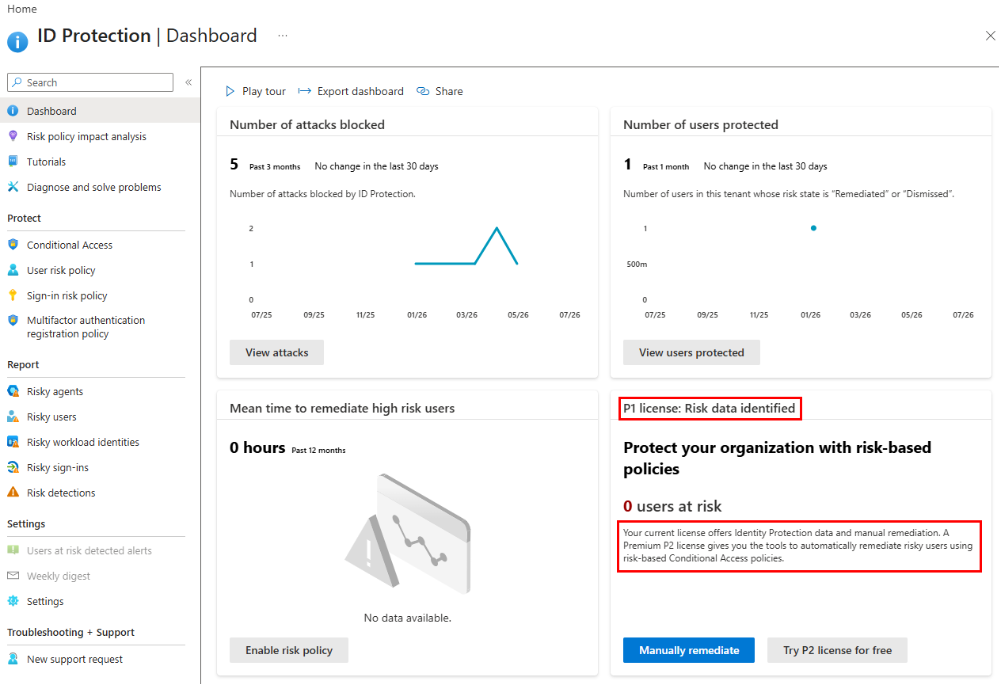
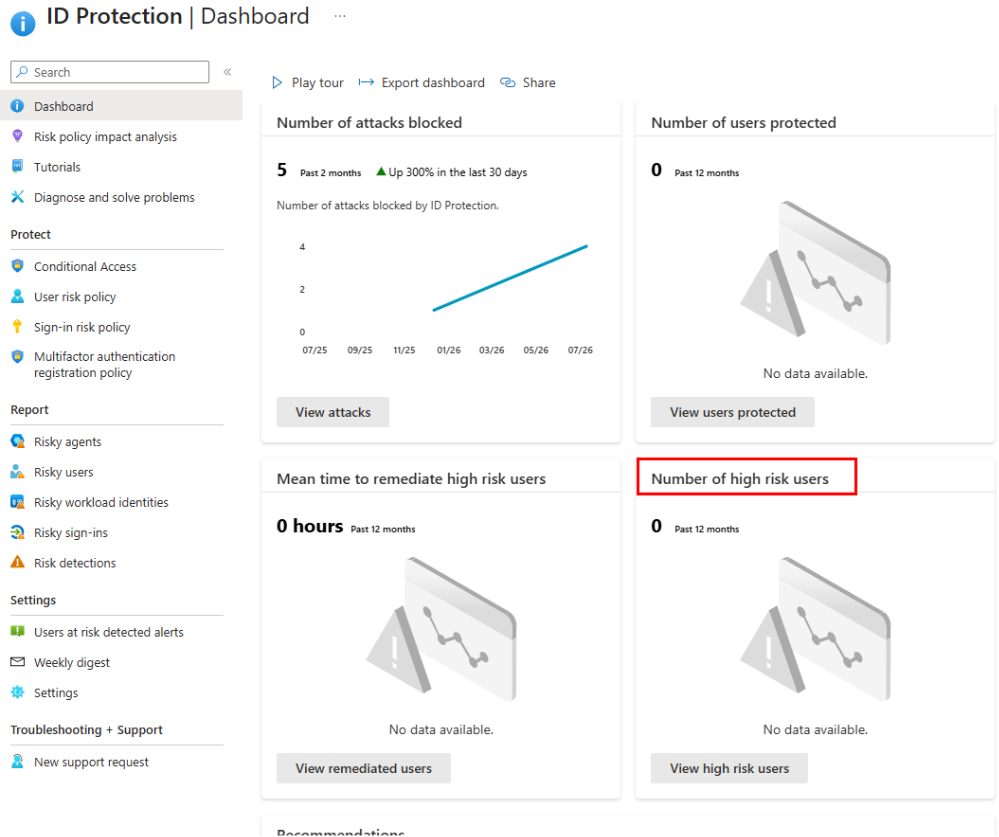
With P1, you still see the same Identity Protection Dashboard layout as a tenant with P2 licensing (found in Entra under ID Protection > Dashboard), but some data is limited:
P1 tenant:
P2 Tenant:
And if we drill into the details of a risky sign-in, some of the details are hidden when using P1:
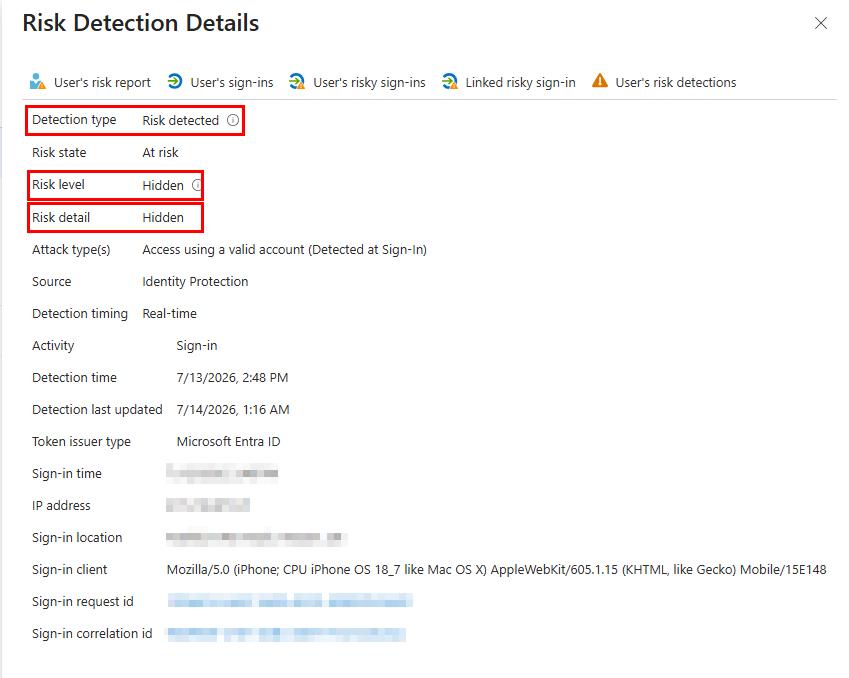
Where P2 will show the full details:
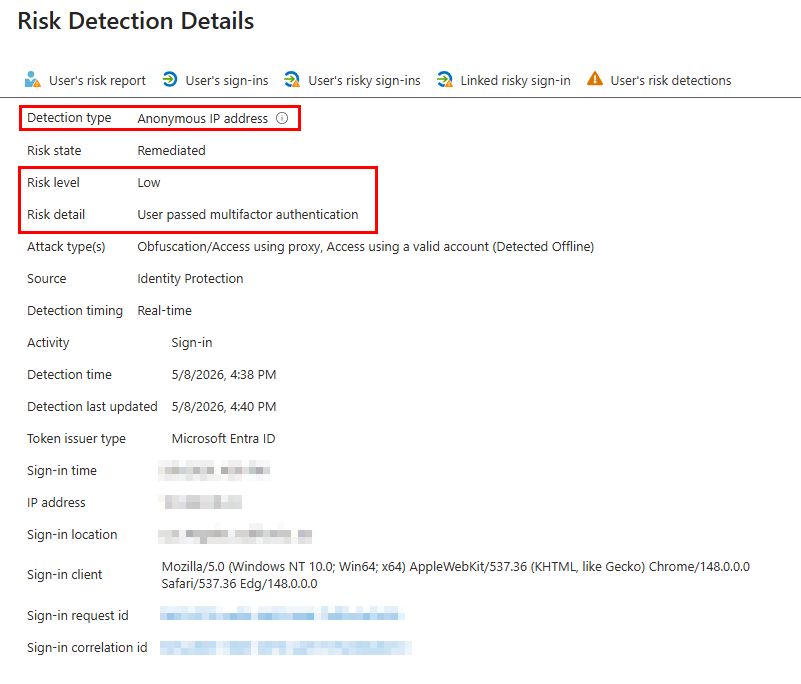
This is important for small organizations because as we already mentioned, they don’t have their own internal SOC. Someone is not monitoring security logs or activity throughout the day. With P1, we can create strong rules, but those rules generally evaluate known conditions. P2 allows Microsoft to dynamically identify suspicious behavior and automatically change the authentication requirements while the sign-in is happening or if potential compromise is detected. P2 also provides user-at-risk email alerts and a weekly risk digest report.
Microsoft separates identity risk into two categories: sign-in risk and user risk. These sound similar, but they represent different problems and should be handled with separate Conditional Access policies.
Sign-In Risk: Is This Authentication Attempt Suspicious?
Sign-in risk is the probability that a specific authentication request was not performed by the legitimate user.
For example, a user normally signs in from Texas on a company-managed Windows computer. A new authentication attempt suddenly appears from Canada using an unfamiliar browser and device. That does not automatically prove the authentication attempt is not legitimate, but it raises suspicion enough to where additional verification should be required.
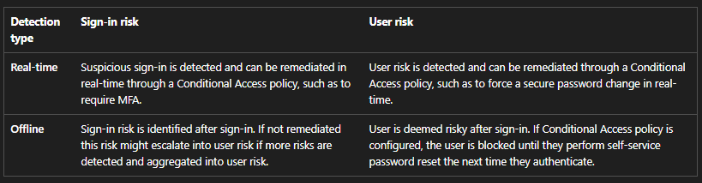
A list of signals used for sign-in risk detection can be found here – What are risk detections? – Microsoft Entra ID Protection | Microsoft Learn. You can also read about the difference between real-time detection and offline detection here – Risk detection types and levels – Microsoft Entra ID Protection | Microsoft Learn. To summarize that, see the table below:
Recommended Sign-in Risk Policy:
Medium or high sign-in risk -> Require MFA every time
This is specifically what Microsoft Recommends (Sign-in risk-based multifactor authentication – Microsoft Entra ID | Microsoft Learn). The user is not challenged simply because they are signing in. They are challenged because Microsoft detected enough risk in that specific authentication attempt. If the user successfully reauthenticates and completes the required MFA, Entra can automatically remediate the sign-in risk.
This provides a better balance between security and usability. Depending on your organization’s MFA policy, you can require a specific authentication strength such as passwordless or phishing resistant MFA.
Even better, if the client is leveraging Intune, we can also require that the device performing the authentication is a compliant Intune device (It’s good practice to always require this anyway, even for non-risky sign ins).
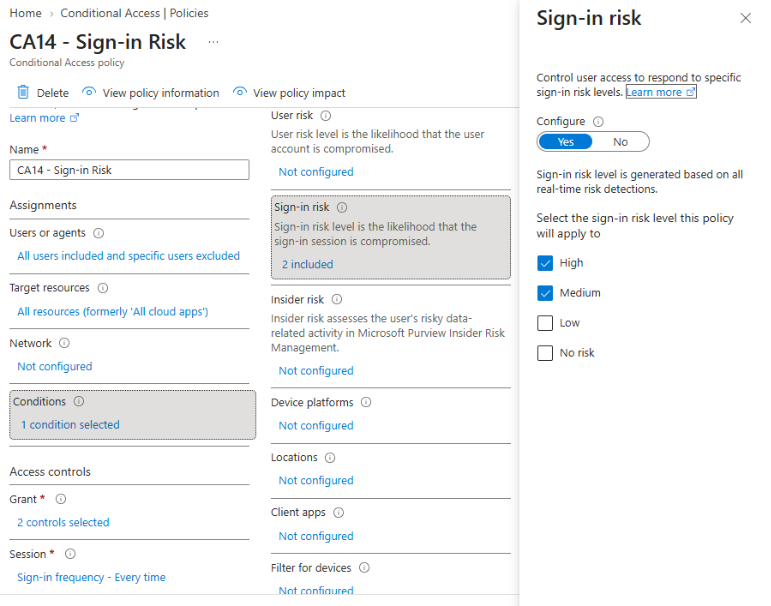
The policy should look like this:
As with most new CA policies, scope to a pilot group to start, or run in report mode prior to rolling out to all users. Make sure to exclude any break-glass emergency identities from your policy assignments:
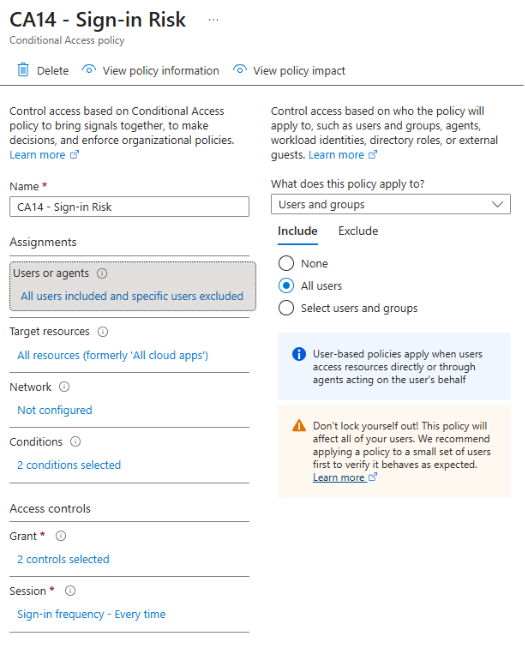
Assign to all resources, and then under conditions, select High and Medium sign-in risk levels
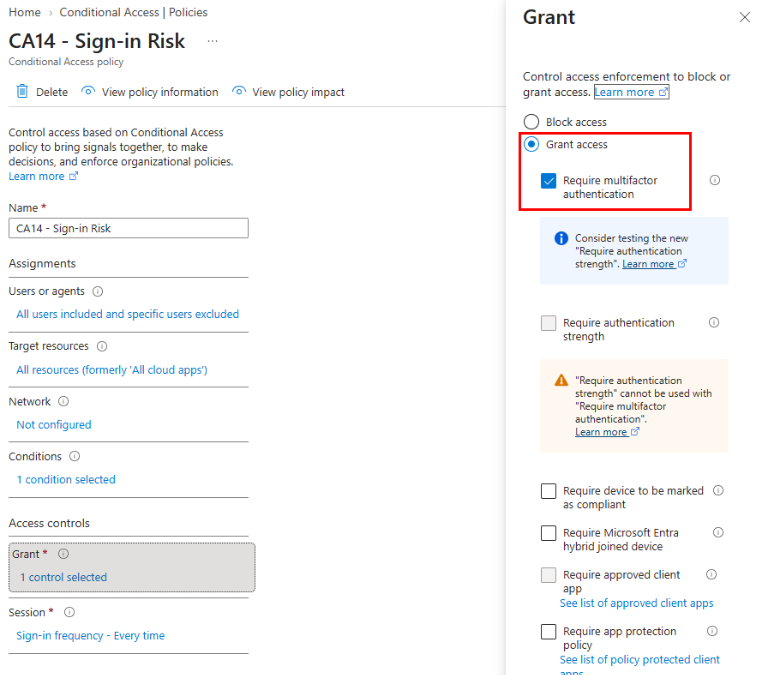
Under Grant, specify your conditions to require MFA
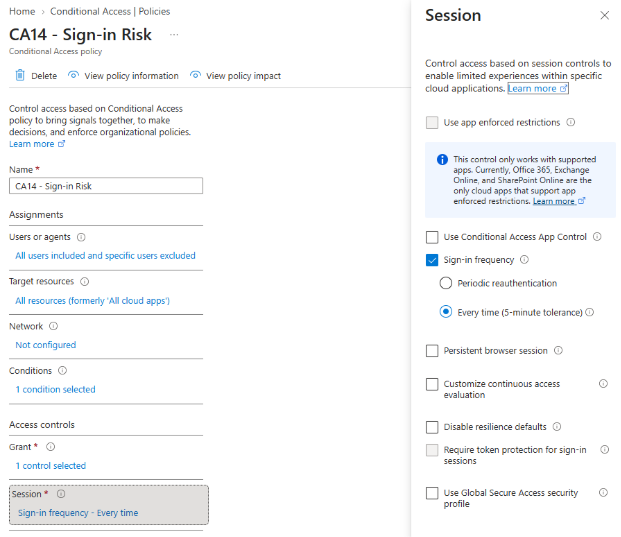
Lastly, under session. Select every time for the sign-in frequency.
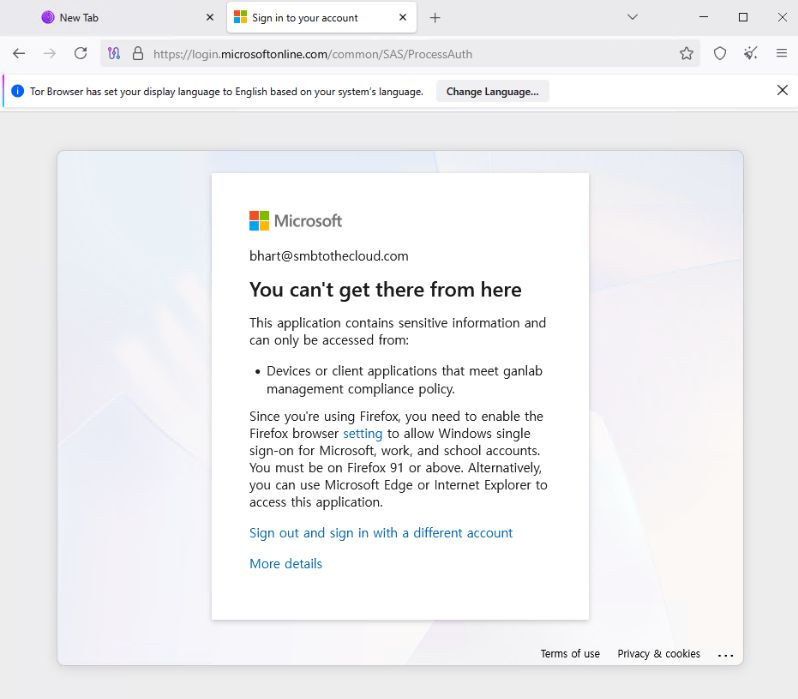
If you want to test your policy, you can simulate a risky sign in attempt by leveraging a VPN or TOR browser. In this example, I required both MFA and a compliant device if medium or high sign in risk is detected. Even after satisfying MFA, the sign-in attempt from the TOR browser was blocked:
We can see in the Entra sign-in logs that the Failed login was due to our sign in risk policy, because the grant controls were not met:
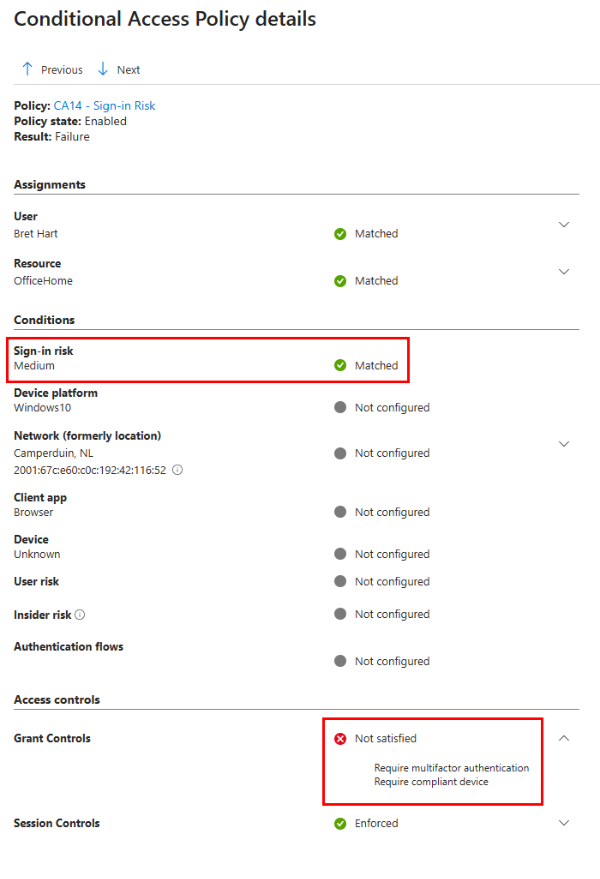
Pretty easy to configure, implement, and test, and a huge security upgrade for any organization. One other tip if your organization has office locations with static IP addresses, you can improve risk calculation by adding trusted named locations (Conditional Access Policy: Using Network Signals – Microsoft Entra ID | Microsoft Learn)
User Risk: Is the Account Itself Compromised?
User risk represents the probability that the user’s identity has been compromised. This is more serious than one unusual sign-in. User risk is influenced by signals such as leaked credentials, where unauthorized actors may have the ability to authenticate as the user. You can read more about the user risk detections here – What are risk detections? – Microsoft Entra ID Protection | Microsoft Learn
The recommended User Risk policy
High user risk -> Require risk remediation
Microsoft’s current risk-remediation control can choose an appropriate remediation flow based on the user’s authentication method and the threat that was detected. For a password-based account, that should include a secure password change and revoking all sessions (you do not need SSPR configured Remediate risks and unblock users – Microsoft Entra ID Protection | Microsoft Learn, but you do need password writeback enabled if it is a hybrid identity). For a passwordless account where the password is not the concern, Entra can revoke sessions and require that the user authenticate again.
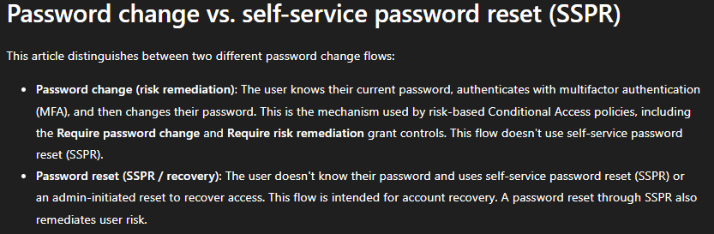
The big benefit here is not just that Entra identifies a risky account. It can also act on the detected risk without waiting for an administrator to notice the event and manually contact the user.
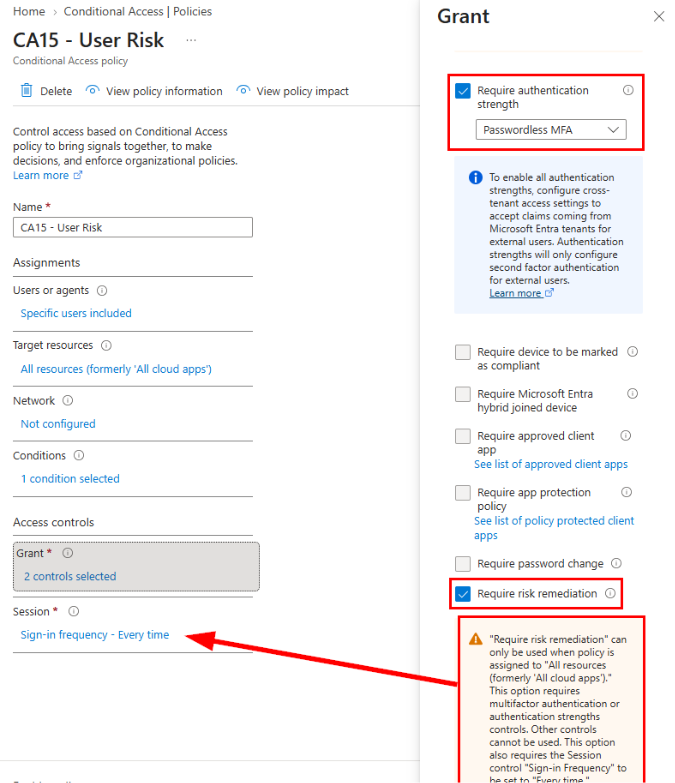
We configure the policy similar to the sign-in risk policy. Microsoft’s official guidance is here (Require remediation for risky users – Microsoft Entra ID | Microsoft Learn). When you configure the grant control to require risk remediation, you’ll be required to select an authentication strength, and it will automatically set the session control for Sign-in Frequency to be every time.
Microsoft-Managed policies
You may see Microsoft managed risk-based policies in tenants that already had a P2 capable license. These follow almost all the same policy rules we just went through. The one difference is for the sign-in risk policy, they only target high risk sign-ins instead of medium + high.
A Quick Note About Third-Party MFA
If your organization is leveraging a third-party MFA provider, such as DUO, risk policies can still be used. However, you need to make sure your third-party MFA provider is configured to use External Authentication Methods in Entra. In addition, your conditional access policy should use “require MFA” instead of “require MFA strength”, because External MFA doesn’t currently satisfy any authentication strengths. Microsoft Entra External MFA Method Provider Reference – Microsoft Entra ID | Microsoft Learn

Privileged Identity Management: Stop Leaving Admin Access Active
Another benefit of P2 for SMBs is Privileged Identity Management (PIM). If you’ve worked at an MSP, I’m sure you’ve seen multiple users with admin roles assigned to their daily driver identity. Someone in HR may be provisioning new user identities, someone else may manage the Teams phone system, or need the ability to create shared mailboxes. This is bad practice, especially since a user’s daily driver identity is more likely to be phished or compromised.
Highly privileged identities, like Global Admins, should always use a separate dedicated admin identity. However, for users who occasionally require a specific administrative function, such as creating a new user, PIM can allow just-in-time elevation to a role for a short amount of time.
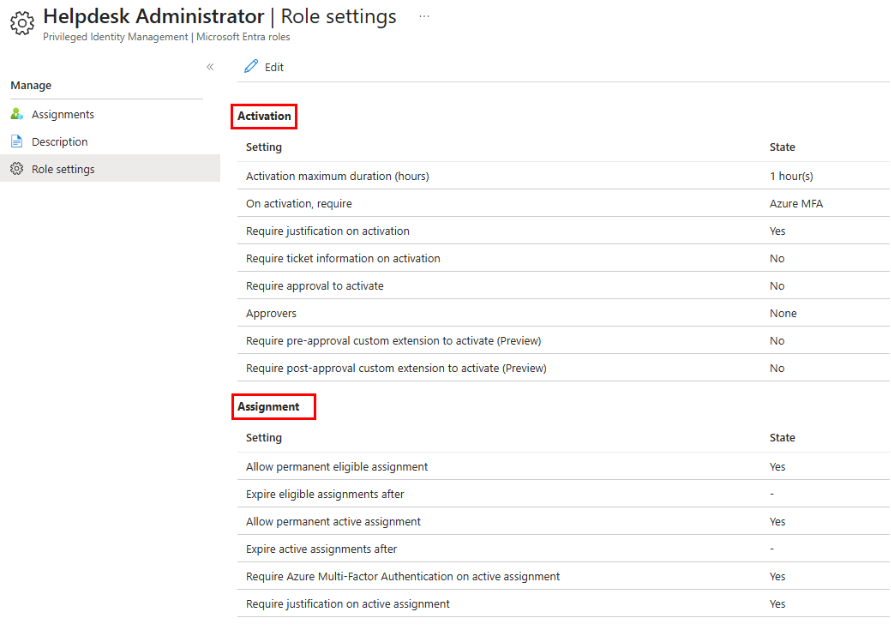
PIM allows role assignments to be active or eligible. The user can use the eligible role when needed, but the role must be activated or requested by the user. If desired, you can require admin review to approve PIM requests, but for an SMB, this is usually too much unneeded overhead. Instead, we can require that they satisfy an MFA challenge and log a business justification when activating an eligible role.
Configuring PIM
Configuring PIM is pretty simple and can be used for both Entra and Azure roles. To create and assign an eligible PIM role, from Entra, navigate to ID Governance > Privileged Identity Management > Microsoft Entra Roles (or Azure roles if you want to assign to an Azure role to a Subscription, Resource Group, or Resource).
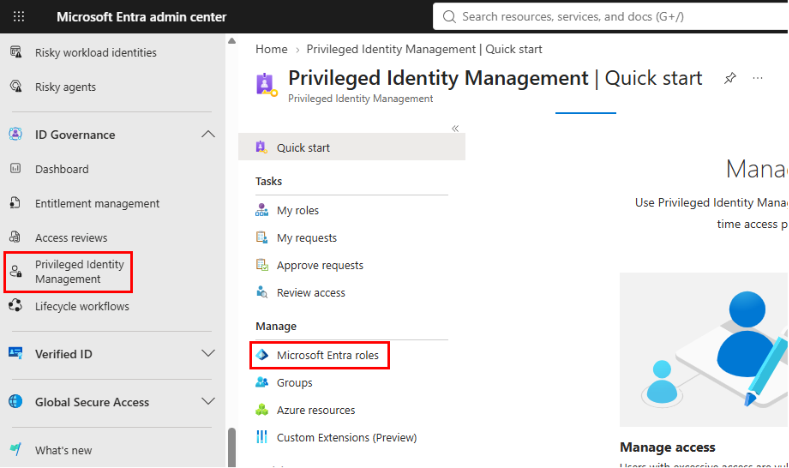
Select Roles and then select the Role you want to add for PIM eligibility:
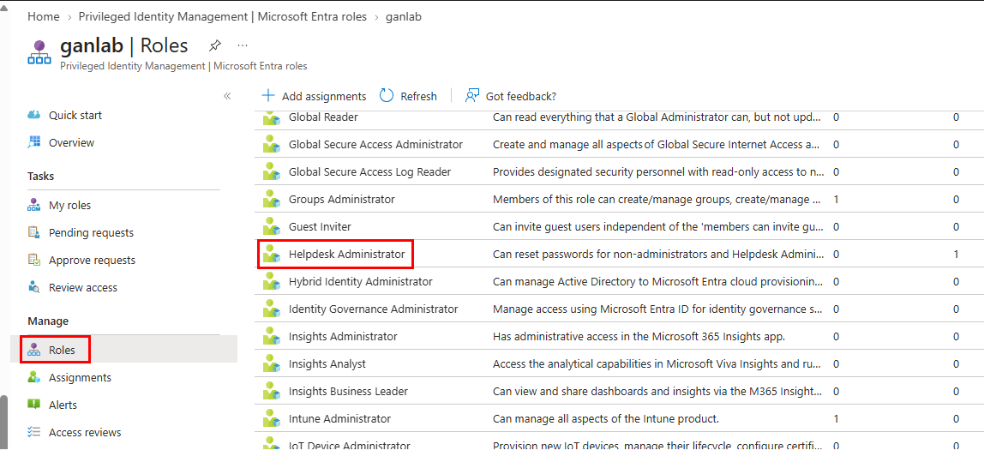
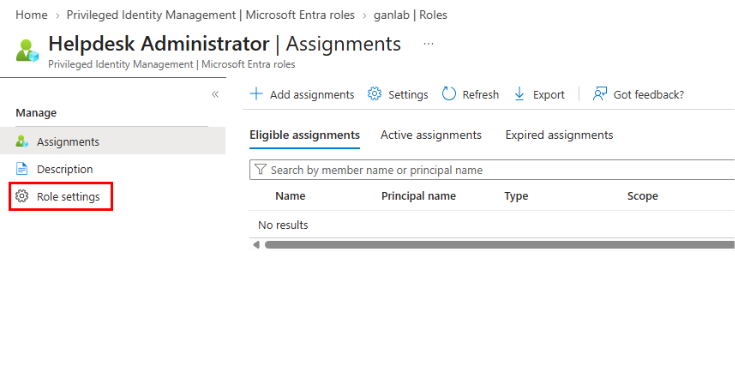
Select Role Settings
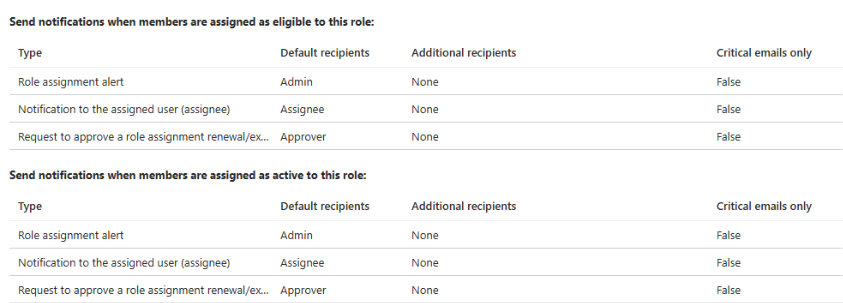
Configure the activation, assignment, and any notification settings:
After your role settings are configured, click Assignments, and then select Add Assignments
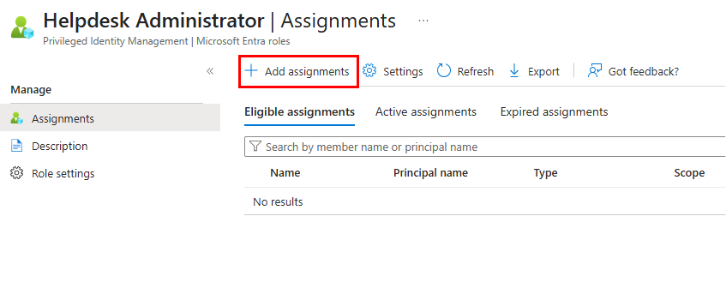
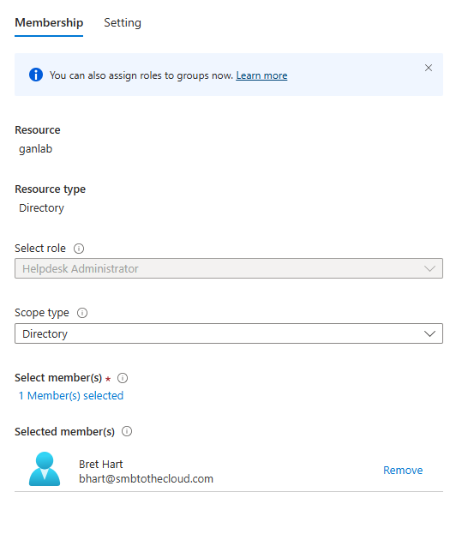
Search for and select your target user or Group
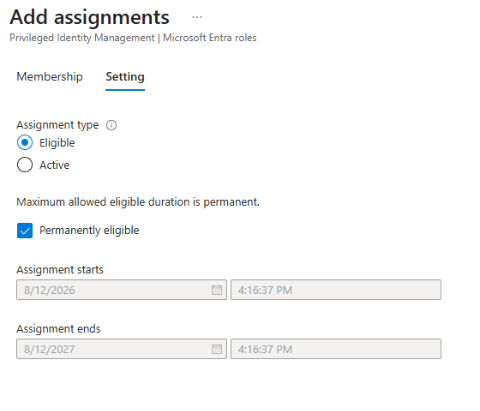
Click Next, and under the assignment settings, choose if you want this to be an eligible or active role, and if you want the role eligibility to be permanent or not.
User Experience
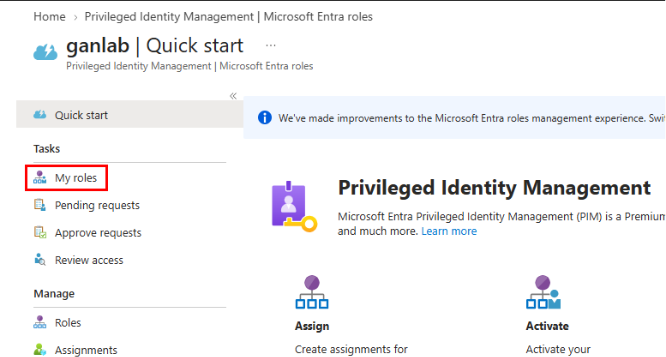
And from the user’s perspective, to active their role, they sign into the Entra dashboard and navigate to the PIM dashboard. They can reach this by searching for PIM
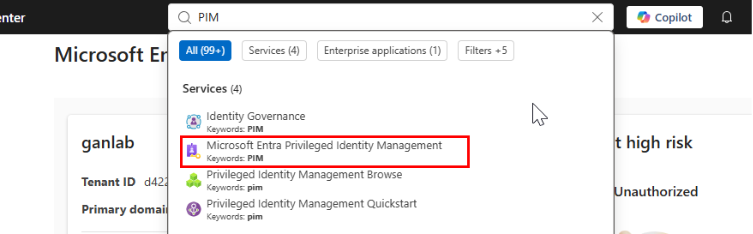
Select My Roles:
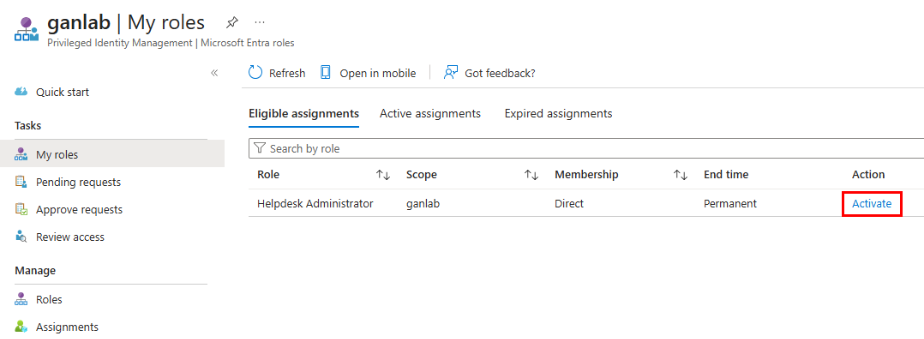
Under Eligible Assignments, they can click the Activate button next to the desired role.
In our example, the user requires business justification prior to clicking activate
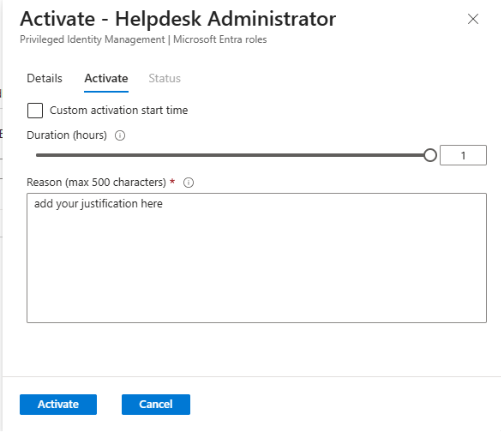
If you simply require Azure MFA to activate the role (like we did in the role settings), then the user may not be challenged for MFA if they already satisfied it earlier in the session.
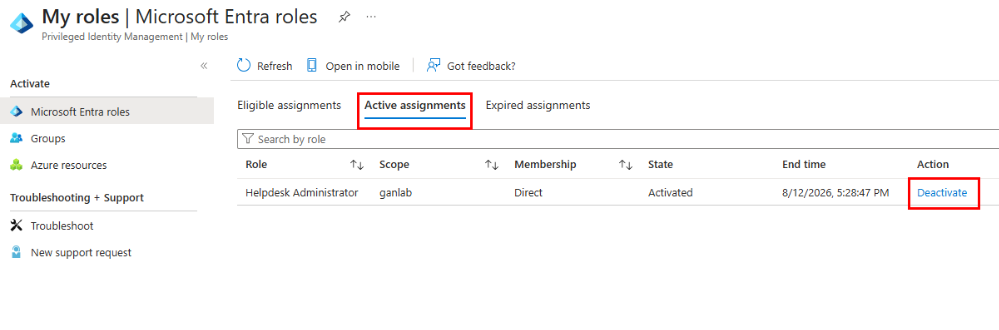
After activating the role, the user will show that they have an active assignment with the expected end time
Clarifying MFA when activating a PIM role
If you want users to be challenged for MFA every time they activate a role, regardless of whether they satisfied an MFA challenge earlier in their session, we need to use authentication contexts. I should note that technically we can’t have it MFA challenge every time, but we can get close. There is a 10-minute reuse window if the user satisfies the required MFA context for a PIM activation. Microsoft explicitly states:
When a user reauthenticates for one role activation, a 10-minute window applies. If the user activates another eligible role within this window, they aren’t prompted to reauthenticate again. The 10-minute window applies across Microsoft Entra roles, Azure resource roles, and PIM for Groups. (Configure Microsoft Entra role settings in PIM – Microsoft Entra ID Governance | Microsoft Learn)
One clarify this further, the authentication context protects the role activation process, not every subsequent use of the activated role. After activation, the user could potentially use the role from another session, device, or location that did not satisfy the original activation requirements. Microsoft explicitly states (Configure Microsoft Entra role settings in PIM – Microsoft Entra ID Governance | Microsoft Learn):
For example, users might use an Intune-compliant device to activate the role. Then after the role is activated, they might sign in to the same user account from another device that isn’t Intune compliant and use the previously activated role from there.
To prevent this situation, create two Conditional Access policies:
- The first Conditional Access policy targets authentication context. It should have all users or eligible users in its scope. This policy specifies the requirements that users must meet to activate the role.
- The second Conditional Access policy targets directory roles. This policy specifies the requirements that users must meet to sign in with the directory role activated.
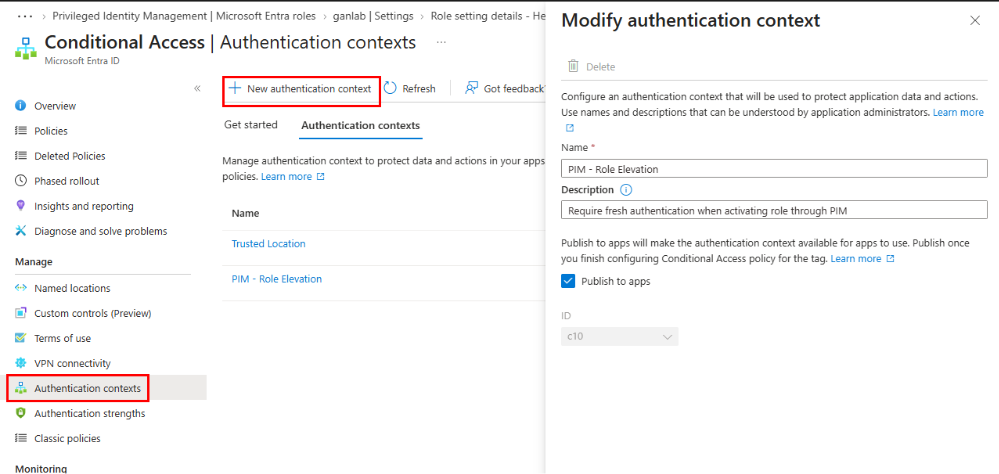
Now that we’ve cleared up the fine details, to configure this, navigate to conditional access > authentication contexts, and add an authentication context. Make something like the screenshot below
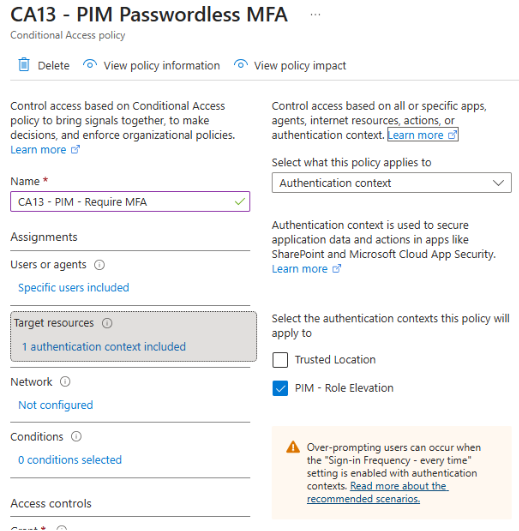
Create a new conditional access policy. Only assign it to groups/users who will be using PIM. Under target resources, select Authentication contexts, and then select the authentication context you just created
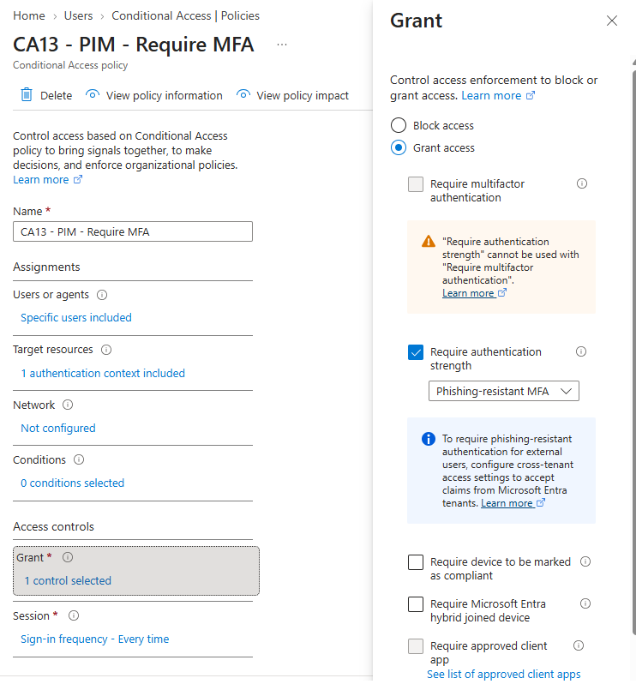
Under Grant controls, specify your desired MFA strength. For PIM, you may want to use something like phishing resistant MFA.
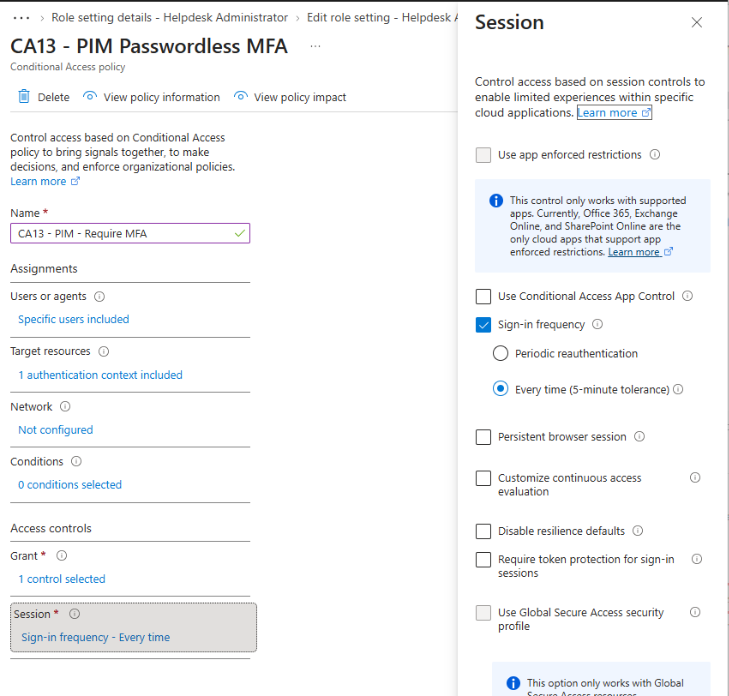
Lastly, make your session sign in frequency to Every time
The last step is to assign the authentication context to your roles. Back in PIM, find the roles you want tied to your authentication context. Under the role activation settings, choose your authentication context:
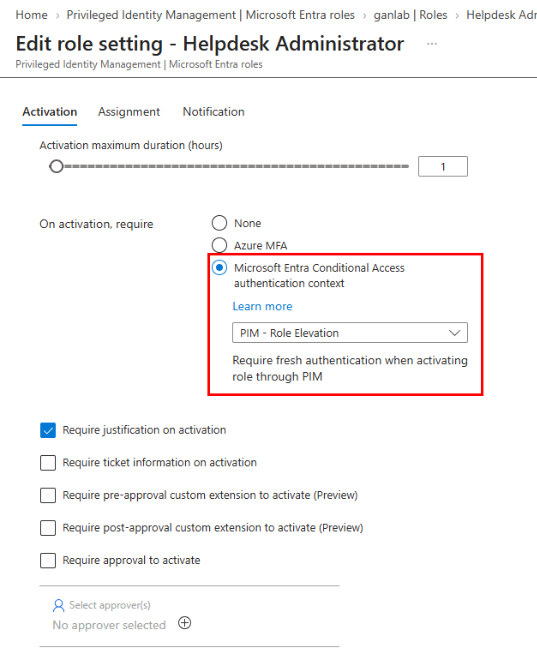
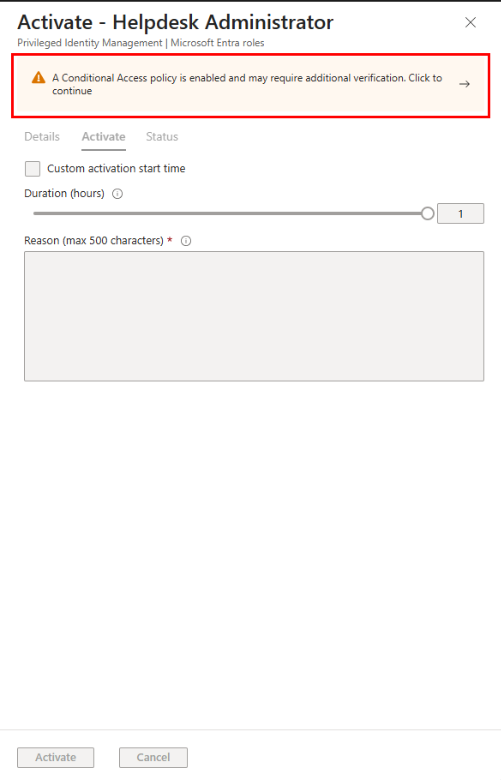
Now, if a user wants to activate an eligible role, they may see this before they can continue:
PIM Use Cases for an SMB
PIM is often described as an enterprise feature, but the core problem exists in small environments too. An error I’ve seen some organizations make is over privileging their role assignments. Since they are using PIM, they think it’s safe to simply add very high privilege roles as eligible, such as Global Admin. Always evaluate what the users need to accomplish and use least privilege roles.
One other important warning: do not place every administrator behind a PIM approval workflow without maintaining break-glass emergency accounts. Emergency accounts should be excluded from normal Conditional Access dependencies and monitored closely, but they should not depend on PIM approval.
What About Access Reviews and Access Packages?
P2 also includes basic access review and entitlement-management capabilities. These are useful, but they are usually secondary for a typical SMB.
Access Reviews can periodically ask whether a user should still have a privileged role, group membership, application assignment, or guest access. One of the only draws of Access Reviews for a typical SMB is reviewing Guest Identities and acting on stale guests. With that said, most SMBs I’ve worked with don’t have any reason to have guest identities in their tenant, so most of them won’t find much value in access reviews.
Access Packages bundle access to groups, applications, Teams, or SharePoint resources into a requestable package with approval and expiration. They are most helpful for organizations with contractors, temporary projects, or frequent access changes. Again, this is geared towards large businesses and enterprises. There’s little use here in the SMB market.
Is Entra ID P2 Worth It for an SMB?
Not every SMB needs Entra ID P2. If Conditional Access is not configured, MFA coverage is incomplete, administrators are sharing accounts, or the Business Premium security stack is barely being used, you should fix those issues first. P2 is not a substitute for a strong P1 foundation.
P2 should be considered when the company:
- Wants to remove permanent administrator and other privileged assignments from normal user identities.
- Needs automatic responses to suspicious sign-ins.
- Wants better identity-risk investigations and notifications.
- Has cyber-insurance, audit, or compliance requirements where P1 falls short.
- Does not have a dedicated security team monitoring identity activity all day.
P1 gives an SMB a great identity-security baseline. P2 adds intelligence, automation, and just-in-time privilege. For an organization that already uses Business Premium well and wants to take the next meaningful step in identity security, P2 can be a very valuable upgrade.